Best AI Audio Editing Tools 2026: Free & Paid - BSTB

18 tools

18 Best AI Audio Editing Tools for Noise Removal, Podcasts and Vocal Separation

AI audio editing tools remove background noise, repair voice recordings, cut podcasts by editing a transcript, strip filler words and split songs into vocals and instruments. This page ranks the 18 best AI audio editing tools on BSTB by their 9-criterion score, with what each one fixes, where it runs, and what it costs.

Top 18 of 37 tools 14 of 18 free to start
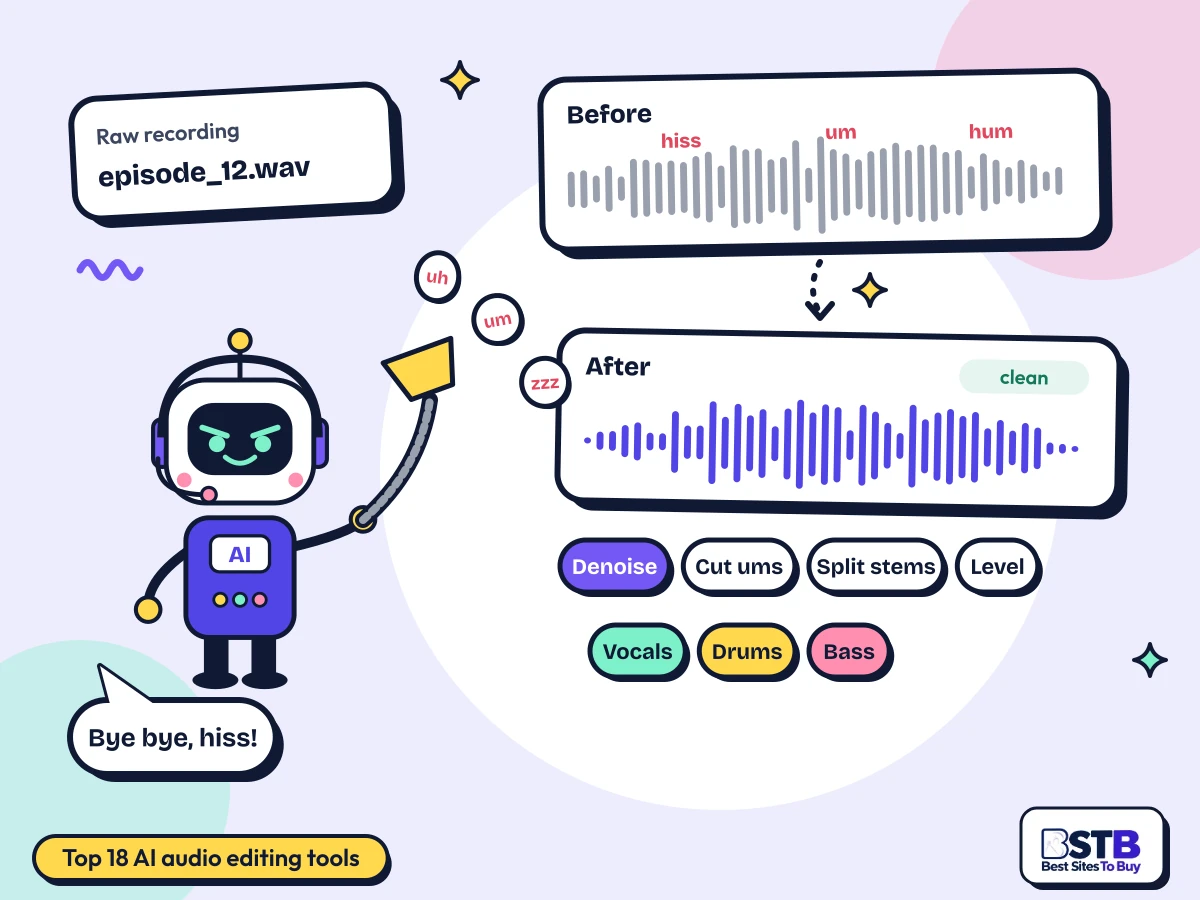
Best AI audio editing tools: Scout the BSTB robot vacuuming up filler words beside a noisy waveform turning into a clean one

Why You Can Trust BSTB's AI Tool Listings

Every tool here has its own BSTB page with a pricing model, plan prices, supported formats and a score from the same nine criteria. Eleven other tools tagged audio editing were left off because they generate voices or music, or only transcribe, rather than edit recordings.

  • One scoring method for every tool
  • Prices taken from each tool's official pages
  • Plain summaries of what the tool actually does

See how BSTB tests and scores AI tools.

The directory

Top 18 AI Audio Editing Tools, Ranked by BSTB Score

DaVinci Resolve leads at 4.4/5, with five tools at 4.2/5; filter the best AI audio editing tools by price or by the job you need done.

Show:

Showing 18 of 18.

Prices after sign-up

AudioShake

4.2/5Freemium

AI separation service that pulls vocals, instruments, dialogue and individual speakers out of mixed audio as editable stems, via web studio or API.

  • Best for: Pro stem and dialogue separation
  • Price: Free Studio plan; paid prices after sign-up
Read the AudioShake review

Descript

4.2/5Freemium

Audio and video editor where deleting words in the transcript cuts the recording, with one-click voice cleanup and filler-word removal.

  • Best for: Editing podcasts by editing the transcript
  • Price: Free; Hobbyist $16/mo yearly or $24 monthly
Read the Descript review
Now owned by Boris FX

iZotope RX

4.2/5Paid

Desktop and plugin repair suite that uses machine learning to strip noise, hum, clicks, clipping, reverb and bleed and to rebalance dialogue or music.

  • Best for: Pro audio repair: noise, hum, clicks, reverb
  • Price: RX 12 Elements $99; Standard $399
Read the iZotope RX review
Live calls only

Krisp

4.2/5Paid

Desktop voice app that strips background noise and echo from live calls and also records, transcribes and summarises meetings.

  • Best for: Noise and echo removal on live calls
  • Price: 7-day trial; Core $8/user/mo yearly
Read the Krisp review

Riverside

4.2/5Freemium

Browser recording studio that captures each podcast guest locally on separate tracks, then lets you edit by transcript and spin out AI clips.

  • Best for: Recording and editing remote podcasts
  • Price: Free; Pro $24/mo yearly or $29 monthly
Read the Riverside review

AutoCut

4.1/5Paid

Plugin for Premiere Pro and DaVinci Resolve that automatically cuts silences, adds captions and zooms, and switches podcast camera angles by active speaker.

  • Best for: Cutting silences inside Premiere or Resolve
  • Price: 14-day trial; Basic $79/yr (reported)
Read the AutoCut review

Camb.ai

4.1/5Freemium

Localisation platform that dubs video and audio into 150+ languages while keeping the speaker's voice, with TTS, cloning, subtitles and live dubbing.

  • Best for: Splitting speech from music for dubbing
  • Price: Free 5,000 credits; Essentials $5/mo
Read the Camb.ai review

CrystalSound

4.0/5Freemium

Desktop noise-cancelling app that sits between your mic and call apps to remove background noise, echo and nearby voices locally, and can clean saved recordings.

  • Best for: Free desktop noise cancelling for calls and files
  • Price: Free Starter; Premium price unconfirmed
Read the CrystalSound review

Kits AI

3.9/5Freemium

Music production platform that turns vocals into licensed or cloned AI voices and also splits stems, removes vocals, adds harmonies and masters tracks.

  • Best for: Stem splitting and vocal cleanup for producers
  • Price: Free; Starter $10/mo (reported)
Read the Kits AI review
Now Google Flow Music

Riffusion

3.9/5Freemium

Prompt-to-song generator that writes full tracks with vocals and lets you refine, remix and split them, now operating as Google Flow Music.

  • Best for: Splitting its own generated songs into stems
  • Price: Free daily credits; Starter $6/mo
Read the Riffusion review

TemPolor

3.9/5Freemium

AI music generator that makes royalty-free songs and instrumentals from text, reference audio or video, with vocals, voice cloning and a stem splitter.

  • Best for: Isolating vocals or drums from a track
  • Price: Free; paid prices unconfirmed
Read the TemPolor review

AirMusic

3.8/5Freemium

Browser AI music generator that makes full songs from prompts or lyrics, with voice cloning, AI covers, a 12-stem splitter and music videos.

  • Best for: 12-stem splitter and vocal remover
  • Price: Free 10 credits; Starter $11.90/mo
Read the AirMusic review
Formerly Voicify AI

Jammable

3.8/5Paid

Browser cover-song maker that replaces a track's vocals with one of tens of thousands of community AI voice models.

  • Best for: Isolated vocals and backing from covers
  • Price: Basic $1.99 first month, then $8.99/mo
Read the Jammable review

AI Song Maker

3.7/5Freemium

Browser song generator that writes full tracks with vocals from prompts or your lyrics, plus a vocal remover, song extension and MIDI tools.

  • Best for: Vocal remover plus song tools
  • Price: Free 20 credits/day; Basic $14.99/mo
Read the AI Song Maker review

Vocal Remover

3.7/5Free

Free web tool that splits songs into a karaoke backing track and isolated vocals, with extra stem, pitch, key/BPM and trimming utilities.

  • Best for: Free karaoke and acapella splits
  • Price: Free
Read the Vocal Remover review
The basics

What Are AI Audio Editing Tools?

AI audio editing tools use trained models to clean, repair, cut and separate recorded audio, doing in one click what used to take manual work in a full audio editor.

Most jobs fall into three groups. Cleanup tools such as Adobe Podcast, iZotope RX and CrystalSound remove noise, echo and hum and make speech clearer. Editing tools such as Descript and Riverside let you cut a podcast by deleting words from its transcript and remove filler words in bulk. Separation tools such as AudioShake and Vocal Remover split a mix into vocals, instruments or dialogue.

Most of these AI audio editing tools online run in a browser: 28 of the 37 in this category. The rest are installed apps or plugins, such as iZotope RX, DaVinci Resolve and AutoCut, which suit pro and business work.

The category is broader than its name. Of the 37 tools BSTB tags as audio editing, 15 have no editing feature at all: most are text-to-speech or music generators. Nine of those score high enough to be considered and are left off this page; the other six score below the cut.

How Does an AI Audio Editor Work?

It analyses the recording, separates speech or instruments from everything else, then removes, rebalances or cuts the parts you choose and exports a new file.

  1. You upload or record

    A voice memo, podcast episode, interview, song or video file.

  2. It analyses the sound

    The model tells speech, music, noise and room echo apart.

  3. It fixes or splits

    Noise and echo are reduced, words cut, or stems separated.

  4. You review and export

    Compare with the original, adjust strength, export WAV or MP3.

What Can You Do With AI Audio Editing Tools?

Remove background noise, rescue rough voice and phone recordings, edit podcasts by transcript, cut filler words and silences, and split songs into vocals and instruments.

  • Remove noise: fans, traffic, hum and room echo.
  • Rescue voice recordings: make laptop or phone audio sound clearer.
  • Edit podcasts: cut by transcript and switch speakers.
  • Cut fillers and pauses: um, uh and long silences in bulk.
  • Remove vocals: make karaoke or acapella tracks.
  • Split stems: drums, bass, vocals or dialogue as separate files.
By job

Best AI Audio Editing Tools by Job

Pick by the job: noise removal, voice cleanup, podcast editing, editing by transcript, vocal removal, stem splitting, or pro desktop software. Tools that do several jobs well appear in more than one group.

Background noise removal

AI tools to remove background noise from audio, from live calls to saved files. Only 9 of the 37 tools in this category do it.

  • AudioShake: Pro stem and dialogue separation
  • iZotope RX: Pro audio repair: noise, hum, clicks, reverb
  • Krisp: Noise and echo removal on live calls
  • CrystalSound: Free desktop noise cancelling for calls and files
  • Adobe Podcast: One-click speech enhancement online

Voice cleanup and repair

AI tools to clean up voice recordings and AI tools to improve audio quality, fixing echo, reverb, hum, clicks and muddy speech.

Podcast editing

AI tools to edit podcasts with AI: recording, multitrack editing, silence and filler removal.

Edit by transcript

Delete words in the transcript and the audio is cut to match. Among the easiest AI audio editing tools for beginners; 6 of 37 offer it.

Vocal removal

Split a song into an acapella and a karaoke backing track.

Stem splitting

AI tools to separate vocals and instruments into stems such as drums, bass and dialogue.

  • AudioShake: Pro stem and dialogue separation
  • Camb.ai: Splitting speech from music for dubbing
  • Kits AI: Stem splitting and vocal cleanup for producers
  • Riffusion: Splitting its own generated songs into stems
  • TemPolor: Isolating vocals or drums from a track

Desktop and plugins

Installed apps and editor plugins for pro work. Most AI audio editing tools for business teams sit here.

  • DaVinci Resolve: Free pro editing with voice isolation
  • iZotope RX: Pro audio repair: noise, hum, clicks, reverb
  • Krisp: Noise and echo removal on live calls
  • AutoCut: Cutting silences inside Premiere or Resolve
  • CrystalSound: Free desktop noise cancelling for calls and files
Know the difference

Online AI Audio Editors vs Desktop Audio Software

Online AI audio editors are fast, free to try and fine for most voice and podcast fixes. Desktop software and plugins give more control and suit heavy repair and pro workflows.

Online AI audio editorDesktop software or plugin
SetupNothing to install; upload in a browserInstall an app or plugin
Best forQuick cleanup, podcasts, vocal removalHeavy repair, video and music post-production
ControlOne click with a strength settingDetailed controls and spectral editing
PrivacyFiles are uploaded to the vendorMany tools process on your computer
PriceFree tiers, then monthly plansFree, one-time licences or subscriptions
On this pageAdobe Podcast, Descript, Riverside, Vocal RemoveriZotope RX, DaVinci Resolve, AutoCut, CrystalSound

28 of the 37 tools in this category run in a browser; 9 are desktop apps, plugins or call apps.

What to look for

What Makes a Good AI Audio Editor?

A good one cleans audio without making voices sound robotic, lets you control the strength, supports the formats you use, states its free limits, and keeps the original for comparison.

  • Natural resultsRemoves noise without a robotic, underwater sound. A strength slider helps.
  • The formats you useWAV and MP3 at minimum, plus video files if you edit video. 20 of 37 name their formats.
  • Non-destructive editsKeep the original so you can compare and undo.
  • The right separationVocals only, or full stems such as drums and bass. 13 of 37 separate audio.
  • Clear rights and privacy17 of 37 state commercial terms. Check how long uploads are kept.
  • A usable free tier29 of 37 have one. Test it on your worst recording first.

These overlap with BSTB's nine scoring criteria, which also weigh speed, support and integrations.

Step by step

How to Clean Up a Voice Recording With AI, Step by Step

Start with the best recording you can, run noise removal at a moderate strength, cut fillers and pauses, then check the result on headphones before exporting.

  1. Record as cleanly as you can

    A quiet room and a close mic beat any cleanup tool.

  2. Remove noise and echo

    Run enhancement or denoise at a moderate strength, not the maximum.

  3. Cut fillers and silences

    Use transcript editing or automatic silence removal.

  4. Level the loudness

    Even out speakers so nobody is too quiet.

  5. Check and export

    Listen on headphones, then export WAV for editing or MP3 for publishing.

Buyer checklist

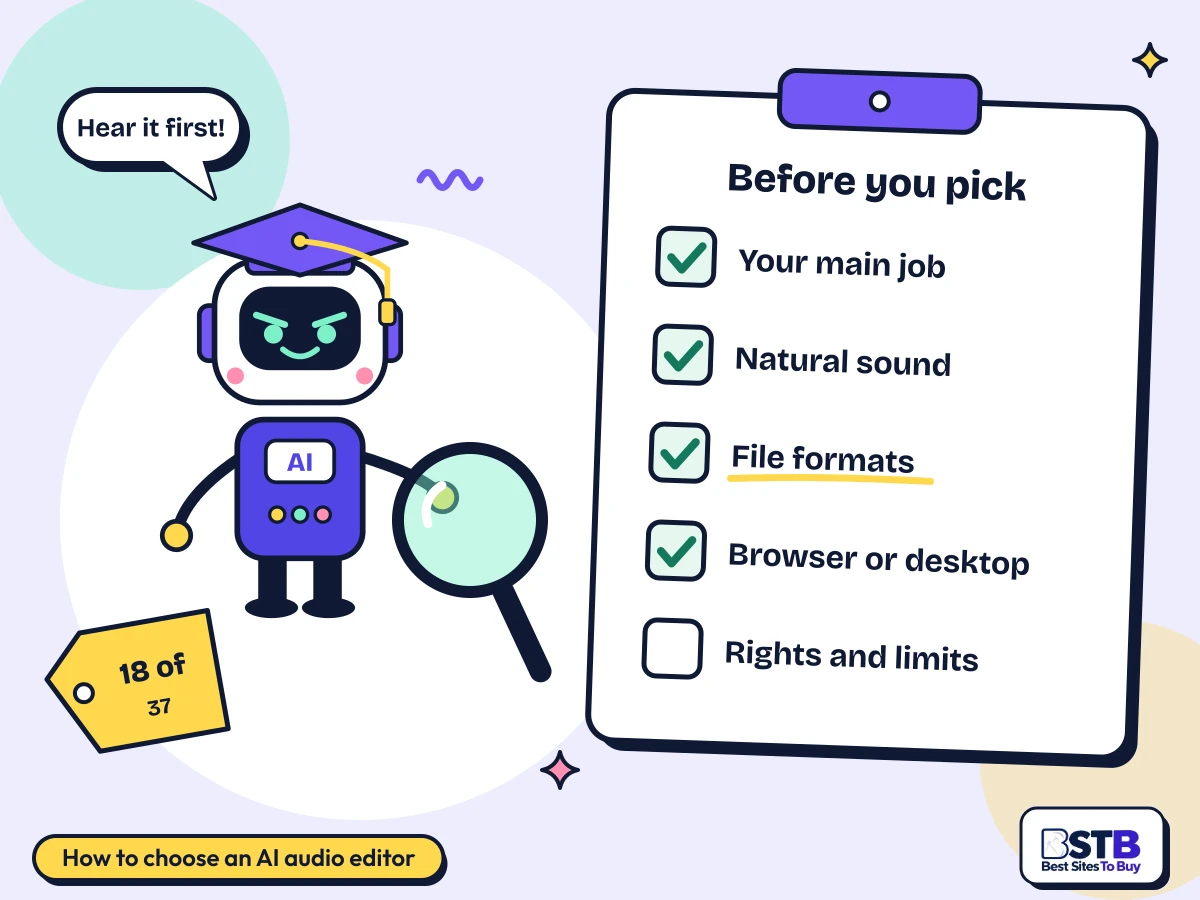
How to Choose an AI Audio Editing Tool

The best AI audio editor depends on the job. Decide which job you need, test the free tier on your own worst recording, check the formats, and choose browser or desktop based on control and privacy.

  1. Your main job

    Noise, podcast editing or vocal removal need different tools.

  2. Natural sound

    Test on your worst file. Over-processing sounds robotic.

  3. File formats

    Confirm WAV, MP3 or video support before paying.

  4. Browser or desktop

    Browser for speed; desktop for control and privacy.

  5. Rights and limits

    Check commercial terms and free upload limits.

How to choose an AI audio editing tool: a checklist reading your main job, natural sound, file formats, browser or desktop and rights and limits
Test it on your worst recording first.
Pricing

Free vs Paid AI Audio Editing Tools

Free AI audio editing tools are good enough for many jobs: 14 of the 18 here are free to start. Paid plans add longer files, higher quality exports, more stems and commercial rights.

DaVinci Resolve is free with a one-time $295 upgrade, and Vocal Remover is free. Adobe Podcast enhances an hour of speech a day for free. Monthly plans start at $5 for Camb.ai and $6 for Riffusion; Descript is $16 a month billed yearly and Riverside $24. iZotope RX uses one-time prices from $99 for Elements to $399 for Standard.

Pricing modelTools on this pageWhat you getTools
Free1 of 18Everything free, no paid tierVocal Remover
Freemium13 of 18Free plan with limits, paid upgradeDaVinci Resolve, AudioShake, Descript, Riverside, Camb.ai, CrystalSound, Wondershare Filmora, Adobe Podcast, Kits AI, Riffusion, TemPolor, AirMusic, AI Song Maker
Paid4 of 18Paid only, sometimes with a trialiZotope RX, Krisp, AutoCut, Jammable

Prices come from each tool's BSTB page; those marked reported or unconfirmed need checking with the vendor. Three cautions. AudioShake shows paid prices only after sign-up. Some stem splitters work only on paid plans. And free tiers often add watermarks or limit downloads.

Use with care

Limits of AI Audio Editing

AI cleanup cannot fully rescue badly clipped or distorted audio, can make voices sound robotic when pushed too hard, and separated stems may carry artefacts.

  • Heavy damage stays: clipping and distortion are hard to undo.
  • Over-processing: strong settings can make speech sound robotic.
  • Stem artefacts: separated vocals can carry traces of the music.
  • Phone audio is limited: only 2 of 37 tools say they handle phone recordings.
  • Fillers are rare: only 3 of 37 remove filler words or pauses.
  • Rights still apply: separating vocals does not give you rights to the song.
Our method

How BSTB Rates AI Audio Editing Tools

BSTB scores every one of these AI audio editing tools on the same nine criteria, and the overall score is the mean of the nine.

  • Accuracy and Reliability
  • Ease of Use
  • Functionality and Features
  • Performance and Speed
  • Customization and Flexibility
  • Data Privacy and Security
  • Support and Resources
  • Cost-Efficiency
  • Integration Capabilities

Scores are based on each tool's official pages, documentation, published pricing and hands-on checks where available. For audio editing, result quality, ease of use and format support weigh most. Every overall score on this page matches the mean of its nine criteria to one decimal, checked in code for all 37 tools in the category. Read more about how BSTB tests and scores tools.

Related AI Tool Categories

AI audio editing tools overlap with these categories. Browse them or see the full AI tools directory.

FAQs

AI Audio Editing Tools: Frequently Asked Questions

Quick answers on noise removal, voice cleanup, podcast editing, filler words, vocal separation, phone audio, transcript editing and file formats.

How can AI remove background noise from a recording?

Upload the file to a tool such as Adobe Podcast, iZotope RX or CrystalSound, which separates speech from noise and removes the noise. Nine of the 37 tools here do it.

Adobe Podcast's Enhance Speech removes noise, echo and room reflections in one upload. iZotope RX removes noise, hum, clicks and reverb with detailed control. CrystalSound and Krisp clean live calls, and CrystalSound can also clean saved files. Start at a moderate strength and compare with the original.

  • Moderate strength: avoids a robotic sound.
  • Compare: listen to before and after.
  • Headphones: reveal leftover hiss.
  • Keep the original: in case you need to redo it.

Can AI clean up poor-quality voice recordings?

Yes, within limits. Eight of the 37 tools in this category clean up voices, removing echo and noise, but badly clipped or distorted audio cannot be fully restored.

Adobe Podcast is the simplest option: upload and download a clearer version. Descript's Studio Sound does the same inside an editor. iZotope RX repairs clicks, clipping, reverb and bleed for harder cases. Heavy damage can make the result sound robotic, so judge by ear.

No competitor answers this as a question.

How do I edit a podcast using AI?

Record or import each track, clean the audio, edit by deleting words in the transcript, remove fillers and silences, level the speakers, then export.

Riverside records each guest on a separate track and lets you edit by transcript. Descript cuts audio as you edit the text and removes filler words in bulk. AutoCut removes silences and switches camera angles inside Premiere Pro or DaVinci Resolve. Six of the 37 tools support podcast editing.

No competitor walks through a podcast editing workflow.

Can AI remove filler words and long pauses?

Yes, but only 3 of the 37 tools here do it: Descript and Riverside remove filler words, and AutoCut removes silences and dead air.

Descript removes um and uh in bulk on every plan. Riverside includes filler word removal in its Magic Audio tools. AutoCut cuts silences inside your video editor but does not name filler words. Review the cuts, because removing every pause can make speech sound rushed.

Can AI separate vocals from background music?

Yes. Thirteen of the 37 tools here separate vocals from music, from free karaoke tools to pro stem splitters that output drums, bass and other instruments.

Vocal Remover is free and makes karaoke and acapella versions. AudioShake separates vocals, instruments and dialogue at pro quality. AirMusic splits up to 12 stems on paid plans, and Kits AI splits vocals, drums and bass. Separating a song does not give you rights to use it.

This is general information, not legal advice.

Can AI improve audio recorded on a phone?

Yes, for speech. Adobe Podcast says its Enhance Speech suits phone-quality recordings, and iZotope RX can restore band-limited phone and call audio. Only 2 of 37 tools say so.

Adobe Podcast is the quickest fix for a voice memo or phone interview, though heavy damage may sound robotic. iZotope RX Advanced's Spectral Recovery restores the missing high frequencies of phone and video-call audio. Record close to the phone's microphone in a quiet room to give either tool a better start.

No competitor answers this question.

Can AI edit audio based on a transcript?

Yes. Six of the 37 tools here let you edit audio by editing its transcript: delete a word or sentence in the text and the recording is cut to match.

Descript and Riverside are built around transcript editing. Adobe Podcast, DaVinci Resolve and Wondershare Filmora also offer transcript-based cutting. It works best for speech; check the cut points by ear, because a word can be clipped at the edges.

What audio formats do AI editing tools support?

Almost all accept MP3 and WAV, and many also take FLAC, M4A and video files. Twenty of the 37 tools name their formats on their BSTB page.

AudioShake accepts WAV, AIFF, FLAC, MP3, AAC, M4A, MP4 and MOV and exports up to 192kHz. Adobe Podcast exports WAV. CrystalSound accepts WAV, MP3 and FLAC. Wondershare Filmora and DaVinci Resolve handle video formats. Export WAV while editing and MP3 for publishing.

  • WAV: lossless, best for editing.
  • MP3: small, for publishing.
  • FLAC: lossless and smaller.
  • MP4 or MOV: for editing audio in video.

Are there free AI audio editing tools?

Yes. Fourteen of the 18 tools on this page are free to start, and DaVinci Resolve and Vocal Remover are free with no paid plan needed.

DaVinci Resolve is a full editor with AI voice isolation, free. Vocal Remover is free for vocal removal. Adobe Podcast enhances an hour of speech a day for free. Free tiers often limit file length, add watermarks or block downloads, so check before relying on one.

Is it legal to separate vocals from a copyrighted song?

Separating vocals for private practice is common, but publishing or selling the separated tracks usually needs the rights holder's permission. The tool does not grant any rights.

Karaoke, practice and study are typical personal uses. Remixes, covers and samples that you publish or monetise need a licence from the rights holders. Check the tool's terms too: some limit commercial use on free plans.

This is general information, not legal advice.

How does BSTB score AI audio editing tools?

Every tool is scored from 1 to 5 on nine criteria, and the overall score is the mean of the nine. Result quality and ease of use matter most here.

The nine criteria are Accuracy and Reliability, Ease of Use, Functionality and Features, Performance and Speed, Customization and Flexibility, Data Privacy and Security, Support and Resources, Cost-Efficiency and Integration Capabilities. Read more about how BSTB tests and scores tools.

Card ratings on the category listing show 0.0 because they count user reviews. The editorial score on each tool's page is the one used here.
How often is this list of AI audio editing tools updated?

The list is reviewed regularly and whenever a tool changes its pricing, is renamed, or shuts down. Status badges on the cards flag recent changes.

Audio tools are renamed and acquired often; several in this category now trade under new names or owners. If you spot an out-of-date price or a tool that should be listed, tell the team through the contact page.

Where a price is marked reported, confirm it with the vendor before subscribing.

Get it listed here.

Get Your AI Audio Editor Listed on BSTB

Send us your tool's name, website and pricing. The BSTB team reviews every submission before it joins the AI tools directory.

List your AI audio editing tool on Best Sites To Buy: the BSTB-1 rocket flying past a pair of headphones towards a tool card
On this page