Best AI Spreadsheet Tools 2026: AI for Excel & Sheets - BSTB

Psst! 25 spreadsheet sidekicks inside

25 Best AI Tools for Spreadsheets, Excel and Google Sheets in 2026

AI tools for spreadsheets write Excel formulas from plain English, clean messy data, build charts and pivot tables, pull numbers out of PDFs and automate Google Sheets, so the grunt work in a workbook takes minutes instead of an afternoon. This page ranks the 25 best AI spreadsheet tools on BSTB by their 9-criterion score, each with its pricing model, free plan and a plain-English summary, so you can compare AI tools for Excel and Google Sheets in one place.

Top 25 of 31 tools 19 of 25 free to start
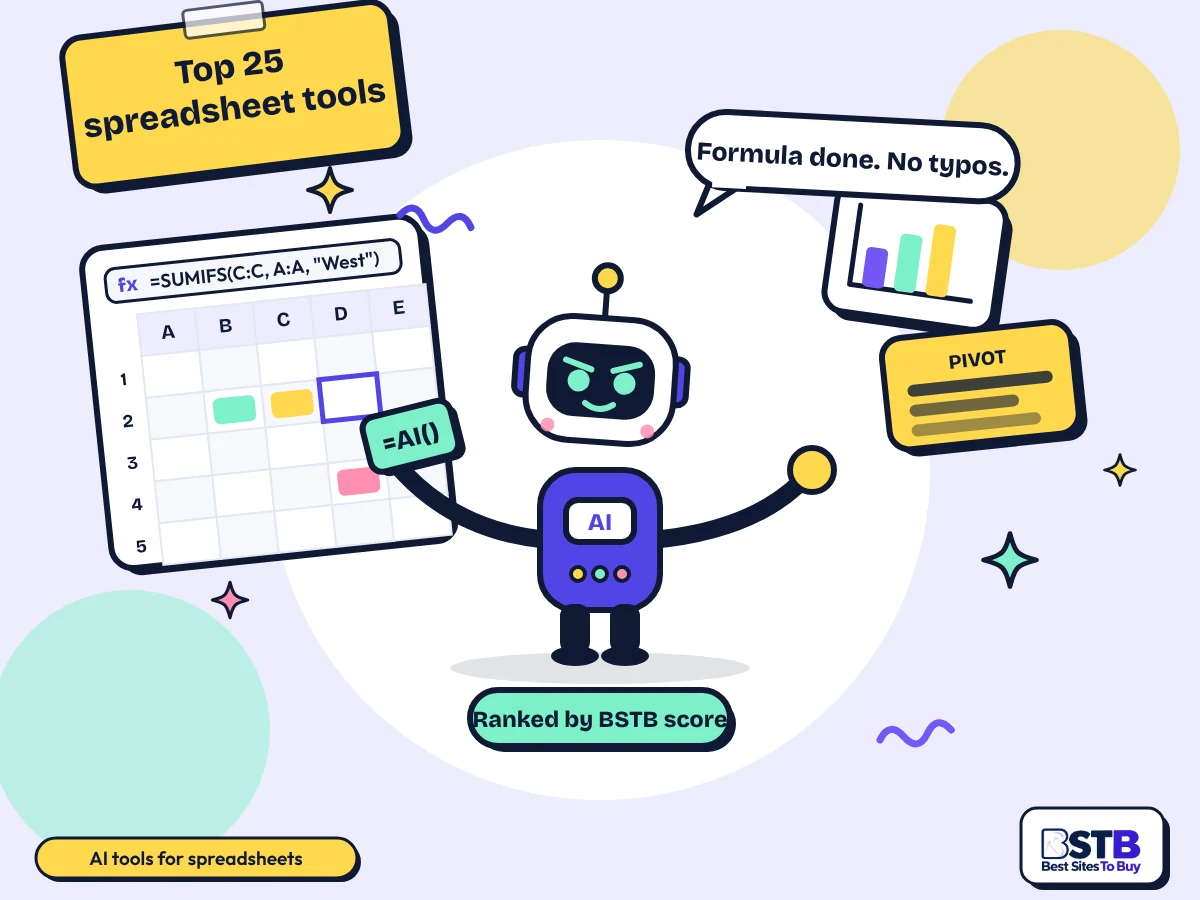
Best AI tools for spreadsheets: Scout the BSTB robot filling a spreadsheet grid with a formula, a chart and a sticky note reading Top 25 spreadsheet tools

Why You Can Trust BSTB's AI Tool Listings

Every AI spreadsheet tool on this page has its own BSTB page with a pricing model, plan prices and a score from the same nine criteria.

  • One scoring method for every tool
  • Prices taken from each tool's official pages
  • Plain summaries of what the tool actually does

See how BSTB tests and scores AI tools.

The directory

Top 25 AI Tools for Spreadsheets, Ranked by BSTB Score

Copilot for Microsoft 365, ChatGPT and Claude score highest of the best AI tools for spreadsheets at 4.4/5; filter by price or job to find the one for your Excel or Google Sheets task.

Show:

Showing 25 of 25. Picked from the 31 spreadsheet-related tools on BSTB and ranked by overall score.

Top rated

ChatGPT

4.4/5Freemium

OpenAI assistant that analyses uploaded Excel and CSV files, writes formulas and runs Python on your data.

  • Best for: Anyone with a spreadsheet question
  • Price: Free plan; Go $8/mo, Plus $20/mo
Read the ChatGPT review
Top rated

Claude

4.4/5Freemium

Anthropic assistant that reasons through messy, multi-tab workbooks, explains formulas and drafts analysis.

  • Best for: Analysts with complex workbooks
  • Price: Free plan; Pro from $17/mo billed yearly
Read the Claude review

Quadratic

4.2/5Freemium

Browser AI spreadsheet that runs Python, SQL, JavaScript and formulas in one grid connected to your databases.

  • Best for: Data analysts and finance teams
  • Price: Free Personal plan; Pro $18 per user/mo yearly
Read the Quadratic review

Julius AI

4.1/5Freemium

AI data analyst: upload a spreadsheet or connect a database, ask in English and get charts, statistics and reports.

  • Best for: Business teams and students
  • Price: Free plan; Plus $20/mo or $16/mo yearly
Read the Julius AI review

Numra

4.0/5Paid

AI agents that handle invoices, collections and reconciliations from spreadsheet inputs and write results to accounting systems.

  • Best for: Mid-sized finance teams
  • Price: Contact for pricing
Read the Numra review

GPTExcel

3.9/5Freemium

Browser assistant that writes, explains and checks Excel and Sheets formulas, VBA scripts and SQL, and analyses uploaded files.

  • Best for: Office workers and analysts
  • Price: Free plan; paid from $9/mo
Read the GPTExcel review

Lido

3.9/5Freemium

Extracts structured data from PDFs, invoices, receipts and emails into rows in Excel, Google Sheets or CSV.

  • Best for: Finance and operations teams
  • Price: Free (50 pages); Standard $29/mo
Read the Lido review

SheetAI.app

3.9/5Freemium

Google Sheets add-on that runs AI through custom formulas such as =SHEETAI to fill, classify and generate cells.

  • Best for: Marketers and analysts
  • Price: Free with your own API key; Starter $12/mo
Read the SheetAI.app review
The basics

Can You Use AI Tools in Excel and Google Sheets?

Yes. AI tools for Excel and Google Sheets now run natively (Copilot in Excel, Gemini in Sheets), as add-ins and add-ons, as standalone AI spreadsheet apps, or as upload-and-analyse assistants such as ChatGPT and Julius AI.

An AI spreadsheet assistant takes a plain-English request, such as "flag duplicate customers and total revenue by region", and returns the formula, the cleaned column or the chart. Formula generators such as Excel Formula Bot and GPTExcel answer one question at a time; bulk tools such as GPT for Sheets and Docs run one prompt across thousands of rows; AI spreadsheet apps such as Quadratic and Sourcetable put the model inside the grid itself.

The 2026 shift is from formula helpers to agentic tools: Copilot's agent mode, ChatGPT Work and Claude can open a workbook, work through several tabs, build the pivot and write the summary without you typing a single function. They still need a human to check the result.

Types of AI Spreadsheet Tools

AI tools for spreadsheets come in four types: native AI built into Excel or Sheets, add-ins that bring a model into your existing file, standalone AI spreadsheet apps, and upload-and-analyse assistants.

  1. Native AI

    Copilot for Microsoft 365 and Gemini in Google Sheets live in the toolbar. No install, but you pay through the Microsoft 365 or Workspace plan.

  2. Add-ins and add-ons

    GPT for Sheets and Docs, SheetAI and DataSnipper install into the app you already use and add AI formulas or buttons.

  3. AI spreadsheet apps

    Quadratic, Sourcetable, Zoho Sheet and Gigasheet are spreadsheets with AI designed in, often with Python, SQL or database connections.

  4. Upload-and-analyse assistants

    ChatGPT, Claude, Julius AI and RowSpeak take an uploaded Excel or CSV file, run the analysis and hand back charts, reports or a cleaned file.

Benefits of Using AI Tools for Spreadsheets

AI tools for spreadsheet automation save the hours spent on formulas, cleaning and formatting, cut formula errors and let non-technical staff analyse data without coding.

  • Formulas without the syntax: describe the calculation and get a working XLOOKUP, SUMIFS or regex, with an explanation.
  • Faster data cleaning: split names, standardise dates, remove duplicates and fill blanks in one pass.
  • Charts and pivot tables on request: ask for the view you want instead of building it by hand.
  • Fewer errors: AI spreadsheet error detection explains a broken formula and suggests the fix.
  • No coding needed: plain-English prompts replace VBA, Apps Script and Python for most everyday jobs.
By spreadsheet job

Best AI Spreadsheet Tools by Job

The best AI tools for spreadsheets depend on the job: writing formulas, analysing data, working in an AI-native spreadsheet, extracting data from documents, building charts and reports, or automating bulk tasks.

Formulas and scripts

AI formula generators for Excel and Google Sheets, plus VBA and scripts.

Data analysis in Excel and Sheets

AI tools for data analysis in spreadsheets, from an uploaded file or inside the app.

AI spreadsheet apps

AI spreadsheet generators and apps with the model built into the grid.

Data entry and extraction

AI tools for Excel data entry: PDFs, receipts, statements and web pages into rows.

Charts, dashboards and reports

AI tools for creating spreadsheet charts, dashboards and Excel reports.

  • ChatGPT Work: Analysts and operations teams
  • Graphy: Marketers, founders and writers
  • YouWare: Founders and product managers
  • Arcwise: Enterprise operations and growth teams

Bulk AI and automation

AI tools for Google Sheets and Excel automation across many rows.

Know the difference

Native AI vs Add-in vs AI Spreadsheet App

AI tools for spreadsheets come in three forms: native AI such as Copilot or Gemini is the quickest to start, an add-in is the cheapest way to bring a model into an existing file, and an AI spreadsheet app does the most but means moving your data.

Native AI (Copilot, Gemini)Add-in or add-onAI spreadsheet app
Where it runsInside Excel or Google SheetsInside Excel or Sheets, after installIts own web app
SetupNone beyond the subscriptionInstall from the store, add an API key for someImport or connect your data
Best forOne-off questions, quick charts, summariesBulk prompts across rows, formula helpAnalysis with Python, SQL or live databases
Typical price$14 to $30 per user a month on top of the suiteFree to $25 a monthFree plan, then $18 to $29 per user a month
Examples on BSTBCopilot for Microsoft 365, Google GeminiGPT for Sheets and Docs, SheetAI, DataSnipperQuadratic, Sourcetable, Zoho Sheet, Gigasheet
What to look for

What Makes a Good AI Tool for Excel and Google Sheets?

A good AI tool for spreadsheets works where your data already lives, handles bulk rows, explains the formulas it writes, keeps your data private and has a free plan you can test.

  • Works where your data livesNative, add-in or import: it should fit Excel, Google Sheets or both without a copy-paste loop.
  • Handles bulk rowsRunning one prompt across thousands of cells matters more than answering one question well.
  • Explains its formulasYou should be able to read, check and reuse the formula or script it produced.
  • Catches errorsError detection and formula explanation stop a bad reference reaching the board report.
  • Keeps business data privateClear terms on training, retention and where uploads are stored.
  • A usable free planThe free tier covers a real workbook, not a five-row demo.

These overlap with BSTB's nine scoring criteria, which also weigh speed, support, customisation and integrations.

Step by step

How to Analyse Data in Excel or Google Sheets With AI, Step by Step

Use AI tools for spreadsheets to analyse data in five steps: get the data into a sheet, clean it, ask for the formulas or summary you need, build the charts and pivot tables, then check the numbers before you share.

  1. Get the data into a sheet

    Use Lido or DataSnipper to pull tables out of PDFs and invoices, or Thunderbit to turn a web page into rows.

  2. Clean it

    Ask Copilot, Gemini or Sourcetable to standardise dates, split columns, remove duplicates and fill blanks.

  3. Ask for the analysis

    Describe the question in English. Julius AI and ChatGPT return statistics and a written answer; Excel Formula Bot gives you the formula to keep in the sheet.

  4. Build charts and pivot tables

    Ask for the view you want. Graphy styles charts for a deck; Copilot and Gemini add pivot tables and charts inside the file.

  5. Check before you share

    Spot-check three results by hand, open any formula the AI wrote, and keep the prompt with the file so a colleague can repeat the analysis.

Buyer checklist

How to Choose the Best AI Tool for Spreadsheets

Choose an AI tool for spreadsheets by naming the job first, then checking whether it runs in Excel, Google Sheets or its own app, testing the free plan, verifying its formulas and reading the data terms.

  1. Name the spreadsheet job

    Formulas, cleaning, analysis, extraction, charts or automation are different jobs. Pick the one that eats your week, then use the Job filter above the tool grid.

  2. Check where it runs

    Teams on Microsoft 365 get the most from Copilot; Workspace teams from Gemini. Everyone else should look at add-ins or an AI spreadsheet app.

  3. Test the free plan

    20 of the 25 tools here are free to start. Run one real workbook through the free tier before paying.

  4. Verify the formulas

    Paste three AI-written formulas into a copy of the sheet and compare the results with a manual check. Drop any tool that gets one wrong.

  5. Read the data terms

    Confirm whether uploads train the model, how long files are kept and whether the plan meets your company's policy before you connect business spreadsheets.

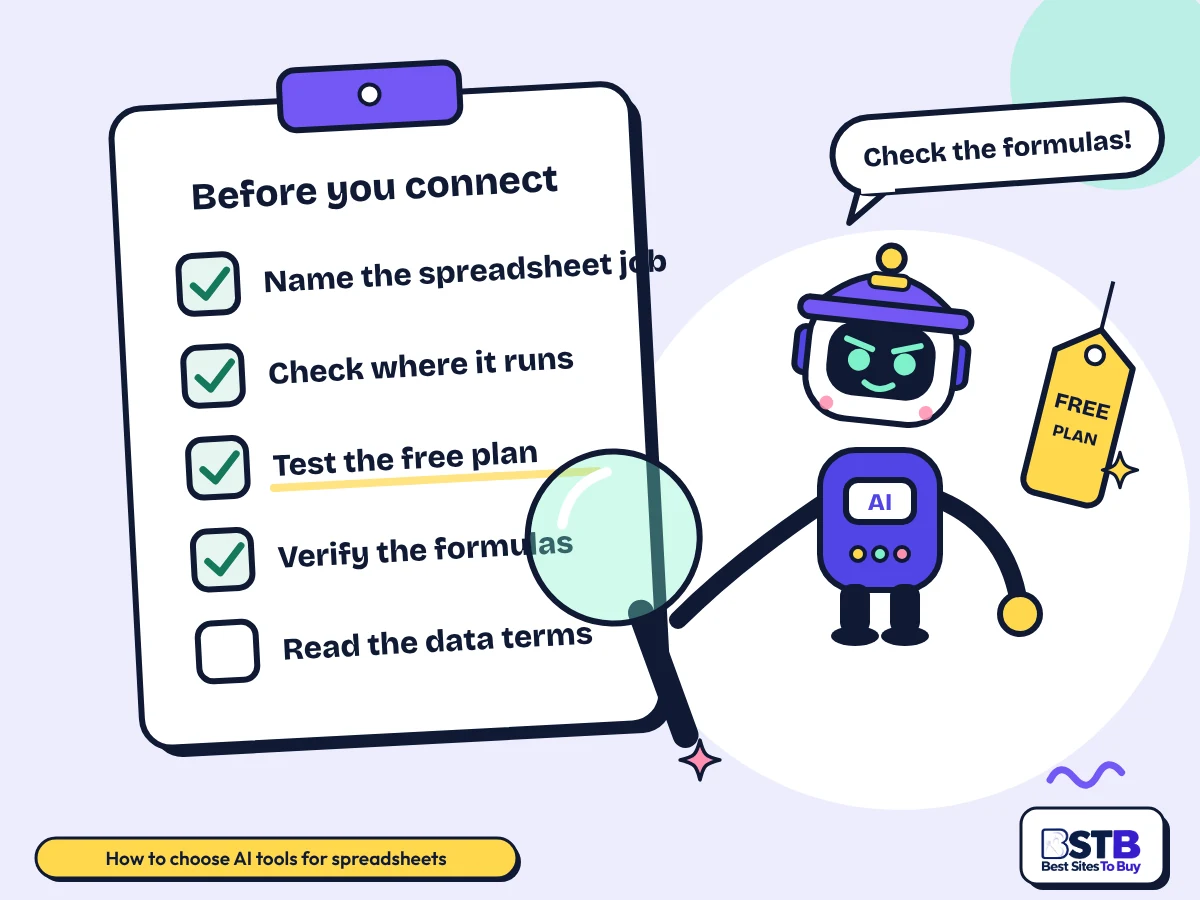
How to choose AI tools for Excel and Google Sheets: Scout in a detective cap checking a 5-step checklist with a magnifying glass
Five checks to run before you connect an AI tool to your Excel or Google Sheets data.
Pricing

Free vs Paid AI Spreadsheet Tools

Most AI tools for spreadsheets are freemium: 18 of the top 25 have a free plan with a paid upgrade, 1 is fully free and 6 are paid only, with most paid plans between $9 and $29 a month.

Pricing modelTools in the top 30What you getTools
Free1 of 25Everything free, no paid tierZoho Sheet
Freemium18 of 25Free plan with limits, paid upgradeCopilot for Microsoft 365, ChatGPT, Claude, Excel Formula Bot, Google Gemini, Thunderbit, Quadratic, ChatGPT Work, Julius AI, Sourcetable, Gigasheet, GPTExcel, Graphy, Lido, SheetAI.app, YouWare, RowSpeak, Smart Clerk
Paid6 of 25Paid only, sometimes with a trialGPT for Sheets and Docs, Smartsheet, DataSnipper, Numra, Ledger IQ, Arcwise

Prices come from each tool's BSTB page. Native tools are priced on top of a Microsoft 365 or Google Workspace subscription, and several finance tools are quoted per company. Confirm on the vendor's site before you buy.

Use with care

Limitations and Safety: Uploading Business Spreadsheets to AI Tools

AI tools for spreadsheets can write a formula that looks right but references the wrong range, misread merged cells and headers, and send your data to a third-party server, so verify outputs and check the data terms.

  • Wrong ranges: a formula can be syntactically perfect and point at the wrong column. Read it before you trust it.
  • Messy layouts: merged cells, multiple header rows and notes in the data confuse most tools. Tidy the sheet first.
  • Row limits: free plans cap rows, cells or credits; very large files need Gigasheet or a database tool.
  • Data privacy: uploads leave your machine. Prefer native tools inside your Microsoft 365 or Workspace tenant for confidential files, and look for a no-training clause elsewhere.
  • Version control: keep a copy of the original and the prompt you used, so results can be reproduced and audited.
Our method

How BSTB Rates AI Tools for Spreadsheets

BSTB scores every one of these AI tools for spreadsheets on the same nine criteria, and the overall score on each card is the plain average of the nine.

  • Accuracy and Reliability
  • Ease of Use
  • Functionality and Features
  • Performance and Speed
  • Customization and Flexibility
  • Data Privacy and Security
  • Support and Resources
  • Cost-Efficiency
  • Integration Capabilities

Scores are based on each tool's official pages, documentation, pricing and public user feedback. Read the full method on how BSTB tests and scores tools.

Related AI Tool Categories

Spreadsheet tools overlap with these categories. Browse them when you need a narrower tool, or go back to the full AI tools directory.

FAQs

AI Tools for Spreadsheets: Frequently Asked Questions

Quick answers on AI formulas, data cleaning, charts, pivot tables, PDF to Excel, Google Sheets automation and whether it is safe to upload business spreadsheets.

How Can AI Automatically Create a Spreadsheet From Text?

AI creates a spreadsheet from text when you describe the columns and rows you want: ChatGPT Work, YouWare, Sourcetable and Claude turn a prompt into a downloadable workbook with working formulas.

Give the tool the headings, an example row and any totals you need. AI spreadsheet generators then build the sheet, add formulas for the totals and format it for you to edit.

  • ChatGPT Work: agent that returns a finished Excel file from a brief.
  • YouWare: generates spreadsheets with formulas alongside apps and decks.
  • Sourcetable: AI spreadsheet that builds the grid from a prompt.
  • Claude and ChatGPT: produce CSV or Excel files you can download.

Paste a sample of real data into the prompt; the sheet comes back in the right shape first time.

Can AI Generate Excel Formulas From Plain English Instructions?

Yes. AI formula generators such as Excel Formula Bot, GPTExcel, Copilot in Excel and Gemini in Sheets turn an instruction like "total sales where region is West" into a working SUMIFS and explain it.

The best AI tools for Excel formulas also explain an existing formula and suggest a fix when one breaks. Keep the explanation with the sheet so a colleague can maintain it.

  • Excel Formula Bot: 4.3/5; free plan, Starter $20 a month.
  • GPTExcel: free plan; formulas, VBA, Apps Script and SQL from $9 a month.
  • Copilot for Microsoft 365: writes formulas inside the Excel formula bar.
  • SheetAI.app: custom AI formulas inside Google Sheets.

Read the Excel Formula Bot review for its nine-point score.

How Can I Use AI to Clean and Organize Messy Spreadsheet Data?

Use AI tools for data cleaning in Excel by describing the fix: split full names, standardise dates, trim spaces, remove duplicates and fill blanks, then review a sample before applying it to the whole sheet.

Copilot, Gemini and Sourcetable clean inside the file. GPT for Sheets and Docs runs a cleaning prompt across thousands of rows. ChatGPT and Julius AI clean an uploaded file and return it.

  • Inside the file: Copilot for Microsoft 365, Google Gemini, Zoho Sheet's Zia.
  • Bulk rows: GPT for Sheets and Docs, SheetAI.app.
  • Upload and return: ChatGPT, Claude, Julius AI, RowSpeak.
  • Very large files: Gigasheet filters and dedupes millions of rows.

Work on a copy. Cleaning prompts can silently drop rows that look like duplicates but are not.

Can AI Find Errors in Excel Formulas?

Yes. AI spreadsheet error detection in Excel Formula Bot, GPTExcel, Copilot and Claude reads a broken formula, explains the #REF!, #VALUE! or circular reference and suggests the corrected version.

Paste the formula and describe what it should do. The tool compares intent with the syntax and points at the wrong range, missing argument or type mismatch. It cannot see whether your source data is right.

  • Explain: paste any formula and ask what it does.
  • Fix: ask for the corrected formula and a one-line reason.
  • Audit: DataSnipper traces figures back to source documents for audit teams.
  • Limit: AI checks the formula, not the business logic behind it.

For board or audit reports, keep a manual check on totals even after an AI fix.

How Can AI Analyze Large Excel Files?

AI analyses large Excel files through tools built for scale: Gigasheet opens files with millions of rows, Quadratic and Sourcetable query connected databases, and Julius AI runs Python on uploads instead of loading every cell into a chat.

General chatbots cap uploads at tens of megabytes and can time out. Spreadsheet-native tools stream the data, so filters, group-bys and charts work on the full file.

  • Gigasheet: cloud spreadsheet for very large CSV and Excel files; free viewer.
  • Quadratic: Python and SQL in the grid, connected to databases.
  • Julius AI: uploads analysed with code, not in the chat window.
  • Copilot: Agent mode works through a full workbook inside Excel.

Split a huge workbook into one table per sheet before uploading; AI tools read single tables best.

Can AI Automatically Create Charts and Graphs in Excel?

Yes. Copilot in Excel, Gemini in Sheets and Graphy create charts from a prompt such as "bar chart of revenue by month", and Julius AI and RowSpeak return charts from an uploaded file.

AI tools for Excel data visualization pick the chart type, label the axes and add a written takeaway. Ask for a specific type if you need consistency across a report.

  • Graphy: styled charts from Sheets, Excel or CSV; free for 5 charts.
  • Copilot for Microsoft 365: charts and pivot tables inside Excel.
  • Google Gemini: charts and summaries inside Google Sheets.
  • RowSpeak: dashboards and reports from messy Excel files.

The Graphy review covers its chart styles and export options.

How Can I Use AI to Create Pivot Tables?

Ask Copilot in Excel or Gemini in Sheets to "create a pivot table of sales by region and quarter", or describe the grouping to ChatGPT or Julius AI and get the summary table back from an uploaded file.

AI tools for creating pivot tables need clean headers and one table per sheet. Name the row field, column field and the value to total, and the tool builds it in seconds.

  • Copilot for Microsoft 365: pivot tables from a prompt, inside Excel.
  • Google Gemini: pivot and summary tables in Google Sheets.
  • Sourcetable and Quadratic: group-by summaries in an AI spreadsheet.
  • ChatGPT: returns the summarised table from an uploaded file.

If the result looks wrong, check for blank header cells; they break most pivot requests.

Can AI Convert PDF Data Into an Excel Spreadsheet?

Yes. Lido, DataSnipper, Smart Clerk and RowSpeak convert PDF tables, invoices, receipts and bank statements into Excel or Google Sheets rows, and ChatGPT can extract a table from a single PDF.

Document-to-spreadsheet tools read the layout, map fields to columns and export CSV or Excel. Accuracy is highest on typed PDFs; scanned or photographed pages need a check.

  • Lido: PDFs, invoices and emails into rows; free for 50 pages.
  • DataSnipper: Excel add-in for audit teams; quote-based.
  • Smart Clerk: bank and card statements to categorised Excel.
  • Thunderbit: web pages into tables exported to Excel or Sheets.

See the Lido review for its page limits and export formats.

How Can AI Automate Repetitive Tasks in Excel?

AI tools for spreadsheet automation handle repetitive Excel tasks in three ways: bulk prompts across rows with GPT for Sheets and Docs or SheetAI, generated VBA or Apps Script from GPTExcel, and agents such as Copilot or ChatGPT Work that run a whole workflow.

Start with the task you repeat weekly, such as categorising expenses or drafting product descriptions. Bulk tools apply one prompt per row; scripts rerun on a schedule; agents handle multi-step jobs.

  • Bulk prompts: GPT for Sheets and Docs, SheetAI.app.
  • Scripts and macros: GPTExcel writes VBA and Apps Script you can save.
  • Agents: Copilot agent mode, ChatGPT Work, Numra for finance workflows.
  • Work management: Smartsheet automations around a spreadsheet grid.

More automation tools are in the AI workflow tools category.

Can AI Fill Empty Cells in a Spreadsheet?

Yes. Gemini in Sheets, Copilot in Excel, GPT for Sheets and Docs and SheetAI fill empty cells from a pattern, a lookup or a prompt, such as adding a category, a country code or a short description for every row.

Tell the tool what the column means and give two or three filled examples. Bulk AI functions then complete the rest. Check a sample, because guesses look as confident as facts.

  • Pattern fills: Copilot and Gemini extend a pattern from a few examples.
  • Lookup fills: Sourcetable and Quadratic fill from connected data.
  • Generated fills: GPT for Sheets and Docs and SheetAI write text per row.
  • Flag, do not guess: ask the tool to mark cells it is unsure about.

Keep generated fills in a separate column until you have checked them.

How Can I Use AI to Analyze Data in Google Sheets?

The best AI tools for Google Sheets are Gemini, which is built into Sheets, or with add-ons such as GPT for Sheets and Docs and SheetAI, or by uploading the sheet to Julius AI or ChatGPT for statistics and charts.

Gemini answers questions, builds tables and charts and fills columns inside the sheet. Add-ons bring other models into cells as formulas. Upload tools suit deeper analysis and written reports.

  • Google Gemini: native; included with Workspace AI plans.
  • GPT for Sheets and Docs: many models across thousands of cells; $25 a month.
  • SheetAI.app: free with your own API key.
  • Graphy: charts straight from a Google Sheet.

Share the sheet as view-only with any upload tool so nothing writes back by mistake.

Can AI Create Financial Reports Using Spreadsheet Data?

Yes. AI tools for financial spreadsheets such as Copilot, Julius AI, RowSpeak and Smart Clerk turn transaction data into monthly reports, variance tables and charts, and Numra and DataSnipper automate the finance workflow behind them.

Give the tool the raw ledger or export, the period and the report layout you want. It produces the summary, the chart and a written commentary that you then review for accuracy.

  • Copilot for Microsoft 365: reports and charts inside Excel.
  • RowSpeak: dashboards and written reports from messy exports.
  • Smart Clerk: bank statements into categorised financial reports.
  • Numra: invoices, collections and reconciliations for finance teams.

Compare more finance tools in the AI finance tools category.

Which AI Tools Can Work Directly Inside Microsoft Excel?

Copilot for Microsoft 365, DataSnipper, GPTExcel's add-in and the ChatGPT and Claude Excel add-ins work directly inside Microsoft Excel; GPT for Sheets and Docs and SheetAI are Google Sheets add-ons.

Native and add-in tools keep the data in your file, which suits confidential workbooks. Standalone apps need an import or upload, which suits analysis across sources.

  • Copilot for Microsoft 365: native; from $18 per user a month.
  • DataSnipper: Excel add-in for audit and finance.
  • ChatGPT and Claude: both offer Excel add-ins alongside the web apps.
  • GPTExcel: web app with a free plan; formulas paste back into Excel.

The Copilot for Microsoft 365 review lists which Excel features need which licence.

Are There Free AI Tools for Excel and Google Sheets?

Yes. Free AI tools for Excel and Google Sheets include Zoho Sheet, which is fully free, and Excel Formula Bot, GPTExcel, Julius AI, Sourcetable, Quadratic, Graphy, Lido and SheetAI all have free plans; ChatGPT, Claude and Gemini are free to start too.

Free AI spreadsheet tools cap formulas, rows, uploads or credits per month. They cover a small team's weekly reporting; heavy bulk work usually needs the first paid tier.

  • Zoho Sheet: fully free online spreadsheet with the Zia assistant.
  • Excel Formula Bot: free formula generation, no card.
  • Sourcetable and Quadratic: free plans for AI spreadsheets.
  • SheetAI.app: free forever with your own API key.

Use the Pricing filter above the tool grid to show only free and freemium tools.

Is It Safe to Upload Business Spreadsheets to AI Tools?

It is safe when the AI tool states that uploads are not used for training, says how long files are kept and runs inside your company's Microsoft 365 or Google Workspace tenant or an equivalent business plan.

Native tools keep data within your existing tenant and policies. Standalone tools vary: read the privacy and security pages, prefer business plans with data-processing terms, and strip personal data before uploading.

  • Safest: Copilot and Gemini inside your own tenant.
  • Check terms: add-ins and upload tools: training, retention, region.
  • Strip first: remove names, emails and account numbers you do not need.
  • Policy: confirm your company allows the tool before connecting live data.

BSTB scores Data Privacy and Security as one of the nine criteria on every tool page.

What Is the Best AI Tool for Excel?

Copilot for Microsoft 365 (4.4/5) is the best-scored of the AI tools for Excel on BSTB for teams already on Microsoft 365; Excel Formula Bot (4.3/5) is the top pick for formulas alone.

The best AI tools for spreadsheets depend on the job: ChatGPT and Claude for uploaded-file analysis, DataSnipper for audit extraction, Gigasheet for very large files.

  • Copilot for Microsoft 365: native Excel AI, from $18 per user a month.
  • Excel Formula Bot: formulas and explanations; free plan.
  • ChatGPT: analysis of uploaded files; free plan.
  • DataSnipper: PDF-to-Excel extraction for finance teams.

Sort the grid by score above, then filter by job to find your match.

What Is the Best AI for Google Sheets?

Google Gemini (4.3/5) is the best AI for Google Sheets on BSTB for Workspace users, and GPT for Sheets and Docs (4.2/5) is the top add-on for running other models across many rows.

Gemini handles questions, fills and charts natively. Add-ons bring OpenAI or Anthropic models into cells as formulas, which suits bulk text work such as categorising or writing.

  • Google Gemini: native; included with Workspace AI plans.
  • GPT for Sheets and Docs: Standard $25 a month.
  • SheetAI.app: free with your own key; Starter $12 a month.
  • Graphy: charts and takeaways from a Google Sheet.

Read the GPT for Sheets and Docs review for model and credit details.

Can AI Write VBA Macros and Apps Script for Spreadsheets?

Yes. GPTExcel, Excel Formula Bot, ChatGPT and Claude write VBA macros for Excel and Apps Script for Google Sheets from a plain-English description, and explain existing scripts.

Describe the trigger, the sheet and the outcome. Paste the script into the editor, run it on a copy of the file and read it before trusting it with live data.

  • GPTExcel: VBA, Apps Script and SQL from $9 a month.
  • Claude: explains and refactors long scripts.
  • ChatGPT: writes and debugs macros in chat.
  • Quadratic: runs Python inside the spreadsheet instead of VBA.

More scripting help is in the AI code assistant category.

What Is the Difference Between AI Spreadsheet Tools and BI Platforms?

AI spreadsheet tools work at the cell and row level inside a sheet, while BI platforms combine many data sources into dashboards; most teams need a spreadsheet tool first and BI only at scale.

Use a spreadsheet tool when the data fits in a file and the answer is a formula, a chart or a cleaned column. Use BI when several systems feed a live dashboard for many viewers.

  • Spreadsheet AI: Copilot, Gemini, Sourcetable, Julius AI.
  • Bridge tools: Arcwise traces metric changes back to SQL and tables.
  • BI-style: connected databases in Quadratic and Sourcetable.
  • Rule of thumb: one file, one owner: spreadsheet AI. Many sources, many viewers: BI.

Many AI spreadsheet apps now connect to databases, which narrows the gap.

How Much Do AI Spreadsheet Tools Cost?

Paid AI spreadsheet plans in the top 25 run from $9 a month (GPTExcel, Smartsheet Pro, Thunderbit) to $29 a month (Sourcetable Pro, Lido, Smart Clerk), with native tools priced per user on top of Microsoft 365 or Workspace.

Free AI spreadsheet tools cover most personal use. Add-ons are the cheapest route into an existing file. AI spreadsheet apps charge per user. Finance and audit tools such as DataSnipper, Numra and Arcwise are quoted per company.

  • Under $15 a month: GPTExcel, Smartsheet Pro, Thunderbit, SheetAI Starter, RowSpeak.
  • $15 to $30 a month: Excel Formula Bot, Julius AI, Quadratic, GPT for Sheets and Docs, Sourcetable, Lido, Graphy, Copilot.
  • Quoted: DataSnipper, Numra, Arcwise.

Plans change often, so confirm the price on the vendor's site before buying.

How Does BSTB Score AI Tools for Spreadsheets?

BSTB scores every AI spreadsheet tool on nine criteria, and the overall score on each card is the average of those nine.

The nine are accuracy and reliability, ease of use, features, speed, customisation, data privacy, support, cost-efficiency and integrations. Each tool page shows the breakdown next to its pricing.

  • Quality: accuracy, features and speed.
  • Experience: ease of use, customisation and support.
  • Trust and value: data privacy, cost-efficiency and integrations.

The full method is on the How We Test page.

Can I Get My AI Spreadsheet Tool Listed on BSTB?

Yes. Send your AI spreadsheet tool's name, website and pricing through the BSTB contact page, and the team reviews it before it is added to the directory.

Listings show the pricing model, a short summary, categories and a nine-criterion score. Sponsored placements are handled separately through the advertising page.

  • Free listing: request it on the contact page.
  • Sponsored placement: see the advertise page.
  • Updates: send new pricing or features the same way.

Start on the BSTB contact page or read about advertising with BSTB.

Psst! Built an AI spreadsheet tool?

Get Your AI Spreadsheet Tool Listed on BSTB

Send us your tool's name, website and pricing. The BSTB team reviews every submission before it joins the AI tools directory.

List your AI spreadsheet tool on BSTB: Scout pilots a rocket towing a sample AI tool listing card
On this page