ChatGPT
4.4/5Freemium
Writes the outline, the slide copy and the speaker notes, and exports a deck you finish in PowerPoint or Slides.
- Best for: Outlines, slide copy and notes
- Price: Free plan; Go $8/mo, Plus $20/mo

Psst! 27 deck builders inside
AI presentation tools turn a topic, a set of notes or a finished document into a designed slide deck in minutes, then let you edit it in PowerPoint, Google Slides or the browser. This page ranks the 27 best AI presentation makers and slide generators on BSTB by their 9-criterion score, each with its pricing model, free plan, export formats and a plain-English summary, so you can compare free AI presentation makers and paid ones in one place.
Every AI presentation tool on this page has its own BSTB page with a pricing model, plan prices, export formats and a score from the same nine criteria.
ChatGPT, Claude and Copilot for Microsoft 365 score highest at 4.4/5, and Gamma leads the dedicated AI presentation makers at 4.1/5; filter by price or by the deck job you need.
Showing 27 of 27. Picked from the 28 tools in the BSTB Presentations category plus the assistants every competitor ranks, ordered by overall score.
Writes the outline, the slide copy and the speaker notes, and exports a deck you finish in PowerPoint or Slides.

Reads a long report or transcript and turns it into a slide-by-slide structure with the argument intact.

Builds a PowerPoint deck from a prompt or a Word file inside the app you already use, using your company template.

Design platform with Magic Design for presentations, a huge template library and brand kits on paid plans.

Google's assistant, built into Google Slides, that drafts slides, writes speaker notes and generates images in place.

Communication coach that runs realistic presentation and pitch roleplays, then scores pacing, filler words and clarity.

Agent mode that takes a goal and returns a finished deck, document or spreadsheet without step-by-step prompting.

AI design platform that builds a presentation from a prompt or pasted notes, then documents and sites from the same content.

Graphic design and image app from Microsoft for the visuals in a deck: covers, backgrounds and social cutdowns.

Add-on for Google Slides and PowerPoint that drafts, rewrites and restructures slides inside the real file.

Browser deck builder that generates slides from a prompt, notes or an upload and keeps the layouts tidy.

Google Slides add-on that turns pasted text, notes or a document into a formatted deck without leaving Slides.

Template library with an AI editor that turns a prompt into editable decks, documents, charts and forms.

Converts notes, outlines, documents and existing decks into editable slides with a modern interactive layout.

Turns spreadsheet data into clean charts with AI-written takeaways, then embeds them in a slide or a doc.

Builds a deck from almost any start: a topic, a document, a YouTube link or a block of text.

Zooming canvas instead of linear slides, with AI help for drafting and a presenter view built for live talks.

Generates an editable deck from a typed topic, backed by SketchBubble's professionally drawn slide library.

Builds editable PowerPoint decks from source material such as a PDF, a document or a short topic line.

Add-ins that put generative AI inside PowerPoint, Word, Outlook, Excel, OneNote and Teams.

Visual canvas that turns a chat into mind maps, flowcharts and diagrams you can frame and present as slides.

Writes and designs a PowerPoint deck from a brief, a link or an upload, drawing on SlideTeam's template catalogue.

PowerPoint add-in that builds an editable deck from a topic, notes, a PDF, a Word file or a YouTube link.

Drafts an investor pitch deck, business plan and supporting documents for an early-stage startup, exporting PPTX.

Turns a topic or outline into a designed deck and records you presenting it over the slides on camera.

Generates presentations and investor pitch decks from a short text prompt in the browser.

Builds the narrative first: you describe the goal and it structures a business deck around a story arc.
AI presentation tools write and design slides for you. You give a topic, a prompt or a document, and the tool returns an editable deck with structure, layouts, copy, images and often speaker notes.
They split into three kinds. Add-ins such as Plus AI, SlidesAI and Copilot for Microsoft 365 work inside PowerPoint or Google Slides, so the output is a real file in your own template. Web generators such as Gamma, Alai and Chronicle build the deck in their own editor and export afterwards. Chat assistants such as ChatGPT and Claude write the structure and the words, and leave the design to you.
The practical difference is where the file ends up. If your company template, your brand fonts and your review process live in PowerPoint, an add-in saves the cleanup. If you are starting from nothing and nobody will reopen the file, a web generator is faster.
An AI presentation maker works in four passes: it writes an outline, splits the content across slides, picks a layout for each one, then fills in images, charts and speaker notes.
The model turns your topic or document into a slide-by-slide plan. This is the step worth reading and fixing, because every later pass builds on it.
Text is chunked so no slide is overloaded. Good tools cut; weaker ones paste paragraphs onto a slide and call it done.
A layout engine matches each chunk to a template: title, two columns, quote, timeline, chart. This is where decks start to look generic.
Stock or generated images, charts from any numbers it found, and speaker notes under each slide. Check every number it puts in a chart.
AI presentation tools generate a full deck from a topic, convert documents and PDFs into slides, redesign an existing deck, apply your brand template, build charts and write speaker notes.
The right AI presentation tool depends on the job: generating a deck from a prompt, converting a document, working inside PowerPoint or Slides, designing and charting, or building a pitch and rehearsing it.
AI presentation generators that build a full deck from a topic, notes or a link.
AI tools for converting documents and PDFs into presentations and outlines.
AI tools for PowerPoint and Google Slides that edit the real file in place.
AI tools for presentation design, templates, charts and infographics.
AI tools for pitch decks, business storytelling and practising the talk.
An add-in keeps your template and your file format, a web generator produces the best-looking deck fastest, and a chat assistant gives you the strongest content with no design at all.
| Add-in (PowerPoint, Slides) | Web generator | Chat assistant | |
|---|---|---|---|
| Where the deck lives | Your real .pptx or Slides file | The tool's own editor, exported later | A chat window, you build the file |
| Brand template | Uses your company master slides | Brand kit on paid plans, otherwise its own style | None, you apply it yourself |
| Design quality | As good as your template | Usually the best looking out of the box | No design, text only |
| Content quality | Good, grounded in your file | Good, sometimes thin on detail | Strongest, it reasons over long documents |
| Export fidelity | Native, nothing to convert | Varies, check fonts and spacing after export | Not applicable |
| Examples on BSTB | Plus AI, SlidesAI, Copilot, Twistly | Gamma, Alai, Chronicle, MagicSlides | ChatGPT, Claude, Google Gemini |
A good AI presentation tool exports cleanly to PowerPoint or Google Slides, produces fully editable slides, respects your brand template, writes content worth keeping and has a free plan without a watermark.
These overlap with BSTB's nine scoring criteria, which also weigh speed, support, customisation and integrations.
Make a deck with AI in five steps: write a brief instead of a topic, fix the outline before any design, generate the slides, replace the filler with your own numbers, then export and check the formatting.
Give the audience, the length, the goal and the tone. "Ten slides for a hospital board on our Q3 readmission rates, cautious tone" beats "Q3 results".
Most tools show the outline before they design. Edit it there. Gamma, Plus AI and Chronicle all let you reorder and rewrite slides before a single layout is chosen.
First drafts run long. Delete the slides that say nothing, merge the two that say the same thing, and keep one idea per slide.
Swap invented examples for your own numbers. Build the charts from a real file with Graphy rather than letting the generator guess them.
Export to PPTX or Google Slides and open it. Check fonts, spacing, text that has overflowed its box, and anything that arrived as a flat image instead of editable text.
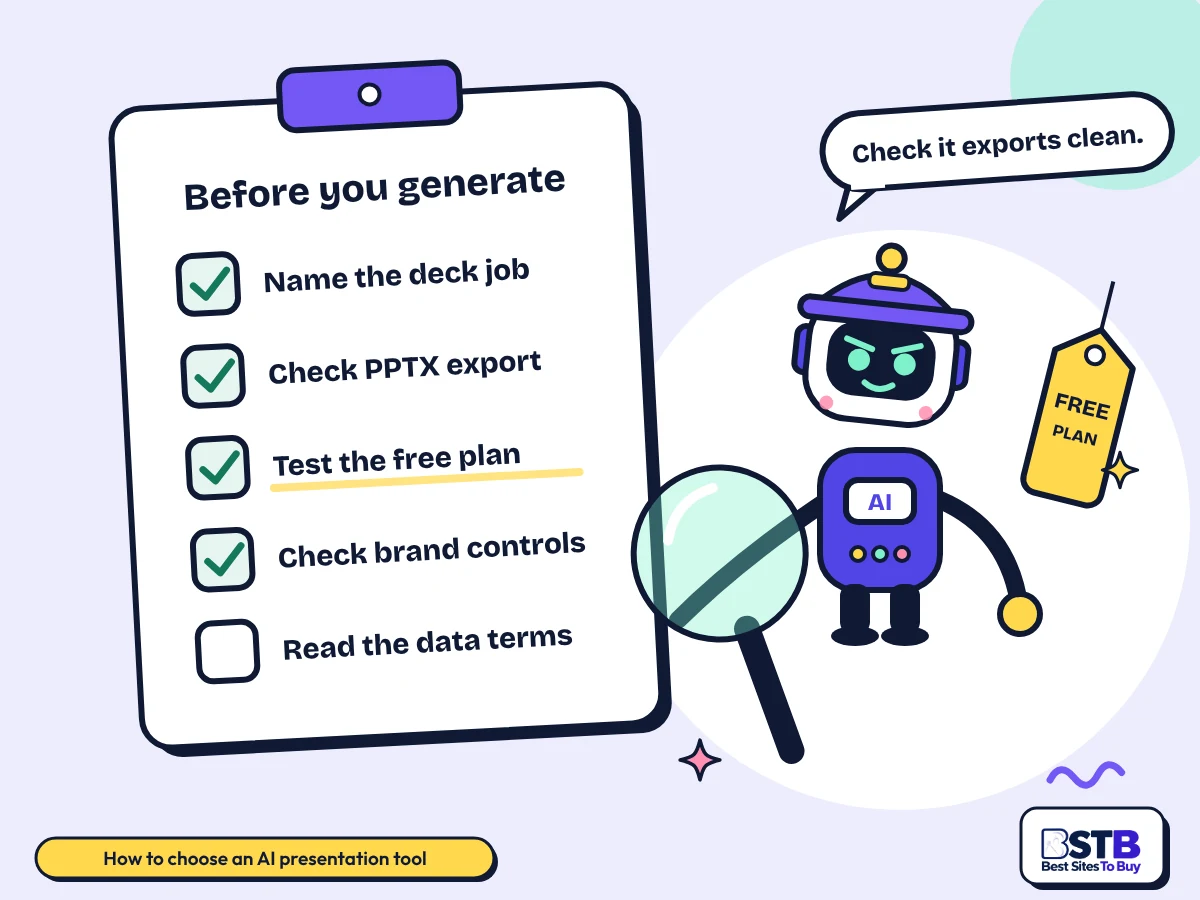
Choose an AI presentation tool by naming the deck job, checking it exports to the format your team uses, testing the free plan on a real brief, confirming brand controls, then reading the data terms.
A pitch deck, a training module, a client report and a conference talk need different tools. Use the Deck job filter above the grid.
If the deck has to land in PowerPoint or Google Slides, an add-in beats a web generator. Test the export before you pay, not after.
24 of the 27 tools are free to start. Run the deck you actually have to give, not a demo topic.
Check that you can load your fonts, colours and master slides, and on which plan. Brand kits are usually a paid feature.
Confirm whether uploads train the model and how long files are kept before you put unreleased results or client material into a deck builder.
Most AI presentation tools are freemium: 24 of the top 27 have a free plan with a paid upgrade and 3 are paid or trial only, with most paid plans between $8 and $30 a month.
| Pricing model | Tools in the top 30 | What you get | Tools |
|---|---|---|---|
| Free | 0 of 27 | Everything free, no paid tier | |
| Freemium | 24 of 27 | Free plan with limits, paid upgrade | ChatGPT, Claude, Copilot for Microsoft 365, Canva, Google Gemini, Yoodli AI, ChatGPT Work, Gamma, Microsoft Designer, Alai, SlidesAI, Template.net, Chronicle, Graphy, MagicSlides, Prezi, SketchBubble AI, SlidesPilot, AI Perfect Assistant, MyMap AI, SlideTeam AI Presentation Generator, Twistly, PowerMode AI, STORYD |
| Paid | 3 of 27 | Paid only, sometimes with a trial | Plus AI, PitchBob.io, Wondershare Presentory |
Prices come from each tool's BSTB page. Free plans usually cap deck count, slide count or exports, and some watermark the export. Weigh the subscription against the time you spend cleaning up the output: a cheap tool that needs an hour of fixing is not cheap. Confirm on the vendor's site before you buy.
AI decks look finished but often are not: layouts repeat, facts and figures can be invented, exports break fonts and spacing, brand rules get ignored and free tiers watermark the result.
BSTB scores every one of these AI presentation tools on the same nine criteria, and the overall score on each card is the plain average of the nine.
Scores are based on each tool's official pages, documentation, pricing and public user feedback. Read the full method on how BSTB tests and scores tools.
Presentation tools overlap with these categories. Browse them when you need a narrower tool, or go back to the full AI tools directory.
Quick answers on generating a deck from a topic, converting documents and PDFs into slides, brand templates, pitch decks, speaker notes, charts, PowerPoint and Google Slides export, and free tools without watermarks.
Use an add-in that works inside PowerPoint: Copilot for Microsoft 365, Plus AI, Twistly and AI Perfect Assistant build the deck in your real .pptx file, using your own template.
Install the add-in, open a blank or branded deck, describe what you need, and the tool writes and lays out the slides in place. Web generators can also export PPTX, but check the fonts and spacing after export.
An add-in keeps your company template. A web generator means a round trip through export and cleanup.
Yes. Give a one-line topic and tools such as Gamma, Alai, MagicSlides and SketchBubble AI return a full deck of 10 to 20 slides with structure, copy, layouts and images, ready to edit.
Quality depends on the brief. A topic alone gets a generic deck. Adding the audience, the length and the goal gets something you can actually use, because the outline pass has more to work with.
Always read the outline before the tool designs anything. Fixing it there saves rebuilding slides later.
Upload the file to a tool that reads documents: SlidesPilot, Twistly, MagicSlides and Chronicle turn a PDF, Word file or report into a slide deck without retyping the content.
Document to deck works best when the source already has headings, because the tool uses them as the slide structure. A wall of unformatted text produces a wall of bullet points.
Add headings to the source document first. The deck structure improves immediately.
Yes. Paste your text or type a prompt and SlidesAI, Gamma, PowerMode AI and Alai turn it into formatted slides, splitting the content and choosing a layout for each one.
This is the core feature of every AI presentation maker. The difference between tools is how well they cut: good ones summarise your text into slide-sized points, weaker ones paste paragraphs onto slides.
Tell the tool how many slides you want. Left alone, most of them run long.
Start from your own template and data: use Copilot or Plus AI inside your branded deck, bring real numbers in as charts, then cut the generated filler and tighten the argument yourself.
A business deck fails on content, not design. The AI gives you a structure and a first draft in minutes. The specifics, the numbers and the recommendation still have to come from you.
Read the deck aloud once. Anything you would not say out loud should come off the slide.
Yes. Most AI presentation makers add stock or generated images automatically, and Microsoft Designer, Canva and Template.net produce the covers, icons and backgrounds for a deck.
Generated images are good for abstract covers and backgrounds, and poor for anything specific such as your product, your team or a real place. Use stock or your own photography for those.
Check generated images for mangled text and extra fingers before a client sees them.
Upload the old deck to a tool that accepts PPTX: Chronicle, Gamma and SlideTeam read the existing slides and rebuild them in a cleaner layout while keeping your content.
A redesign is often a better use of AI than a fresh generation, because the content is already right. Expect to fix the slides that carried a diagram or a custom chart, since those rarely survive the rebuild.
Keep the original file. Redesigns lose custom diagrams more often than they lose text.
Yes, but usually on a paid plan. Add-ins such as Copilot and Plus AI build inside your existing master slides, while Canva, Gamma and Template.net apply a brand kit of fonts, colours and logos.
Brand control is the clearest free-versus-paid line in this category. Free tiers give you the tool's house style. Check which plan unlocks the brand kit, and whether it covers fonts as well as colours.
Upload your template first, then generate. Applying a brand after the fact rarely fixes the layouts.
Use a tool built for pitch decks: PitchBob.io drafts the investor deck and supporting documents from a description of your startup, and STORYD structures the narrative before the slides.
AI gets you a complete first draft against the standard investor structure: problem, solution, market, traction, team, ask. It cannot invent your traction, so the numbers slide is where the work stays.
Investors read the numbers slide first. Write that one yourself.
Yes. Copilot, Plus AI, Gamma and Google Gemini generate speaker notes under each slide, matched to what the slide says, and you can ask for a specific length or tone.
Generated notes are a usable script skeleton rather than a finished talk. They work best when you ask for a word count per slide and a tone, then edit them into your own voice.
Ask for notes after the slides are final, or you will rewrite them twice.
Use tools built for teaching: MagicSlides, Prezi, Wondershare Presentory and SlidesAI turn a lesson topic or a set of notes into classroom slides, and Presentory records you presenting over them.
For teaching material the structure matters more than the design: one idea per slide, a question to open, a check for understanding at the end. Ask for that structure in the prompt rather than fixing it after.
Ask for a question slide every few slides. It turns a lecture deck into a lesson.
Yes. Graphy turns spreadsheet data into clean charts with written takeaways, MyMap AI builds diagrams and flowcharts, and most deck generators produce basic charts from numbers in your source file.
The safe pattern is to build charts from a real file rather than from a prompt. A chart generated from text can look convincing while showing numbers the model invented.
Check the axis labels and the totals on every generated chart. They are the most common error.
Yes. Nearly every tool here exports PPTX, and add-ins such as Plus AI, SlidesAI and Copilot skip export entirely by building in the real PowerPoint or Google Slides file.
Export quality is the thing to test. A good export keeps editable text boxes, fonts and spacing. A poor one arrives as a flat image per slide, which cannot be edited by whoever reviews it.
Run the export test on the free plan. Some tools lock PPTX export behind a paid tier.
Yes. Gamma, SlidesAI, Canva, MagicSlides and Alai all have free tiers that export without a watermark, though they cap decks, slides or AI credits per month instead.
24 of the 27 tools here are free to start. The limit moves rather than disappears: a credit allowance, a slide cap, no brand kit or no PPTX export. Check which limit applies before you commit to a deck.
Free plans change often. Confirm the current limit on the vendor's pricing page.
Cut the slide count, apply your own template, replace stock images with real ones, vary the layouts and put one idea on each slide. The generated draft is a starting point, not a finished deck.
Most AI decks give themselves away in the same five ways: too many slides, repeated layouts, generic imagery, bullet points of equal length, and a conclusion that says nothing. Fixing those takes about twenty minutes.
Present it to one colleague before the real audience. They will spot the generated slides instantly.
Paid plans mostly run from $8 to $30 a month per user, with add-ins priced per seat, one-off pitch-deck tools from about $30, and enterprise template platforms higher.
Weigh the price against cleanup time. A tool at $20 a month that produces a deck you can present saves more than a free one that needs an hour of fixing per deck.
Prices are from each tool's BSTB page. Annual billing usually cuts 20 to 40 percent.
Only after editing. AI gets you a structured, designed draft in minutes, but client and investor decks are judged on specifics, and the specifics are the part the tool cannot know.
Use it for the skeleton, the layouts and the speaker notes. Write the numbers, the recommendation and the ask yourself, then check every figure on every slide before it leaves your laptop.
A generated deck that nobody edited is obvious to the audience within three slides.
BSTB scores every AI presentation tool on nine criteria: accuracy and reliability, ease of use, functionality, performance, customisation, data privacy, support, cost-efficiency and integrations.
The score on each card is the plain average of those nine. Scores come from each tool's official documentation, pricing pages and public user feedback, and every tool keeps its own page with the full breakdown.
BSTB does not sell a presentation tool, so nothing on this list is ranked first for being ours.
BSTB rechecks this list whenever a tool on it changes its pricing, export options or feature set, and reviews the whole category on a rolling basis as new AI presentation makers are listed.
This category moves quickly: free tiers tighten, add-ins change their pricing per seat, and several tools have been renamed or absorbed into larger suites. Each tool's own BSTB page carries the last checked figures.
Always confirm the current price on the vendor's own site before paying.
Send us your tool's name, website and pricing. The BSTB team reviews every submission before it joins the AI tools directory.