DaVinci Resolve
4.4/5Freemium
Full post-production suite covering editing, colour, effects and audio, with a genuinely free edition and AI tools in Studio.
- Best for: Serious editing without a subscription
- Price: Free $0; Studio $295 one-time
Psst! 30 editors inside
AI video editing tools do the mechanical half of an edit: they transcribe the footage, cut the silences and filler words, caption every line, find the moments worth clipping, reframe them vertically and reassemble the whole thing from a text prompt. This page ranks the 30 best AI video editors on BSTB by their 9-criterion score, each with its pricing model, free plan, editing jobs and a plain-English summary.
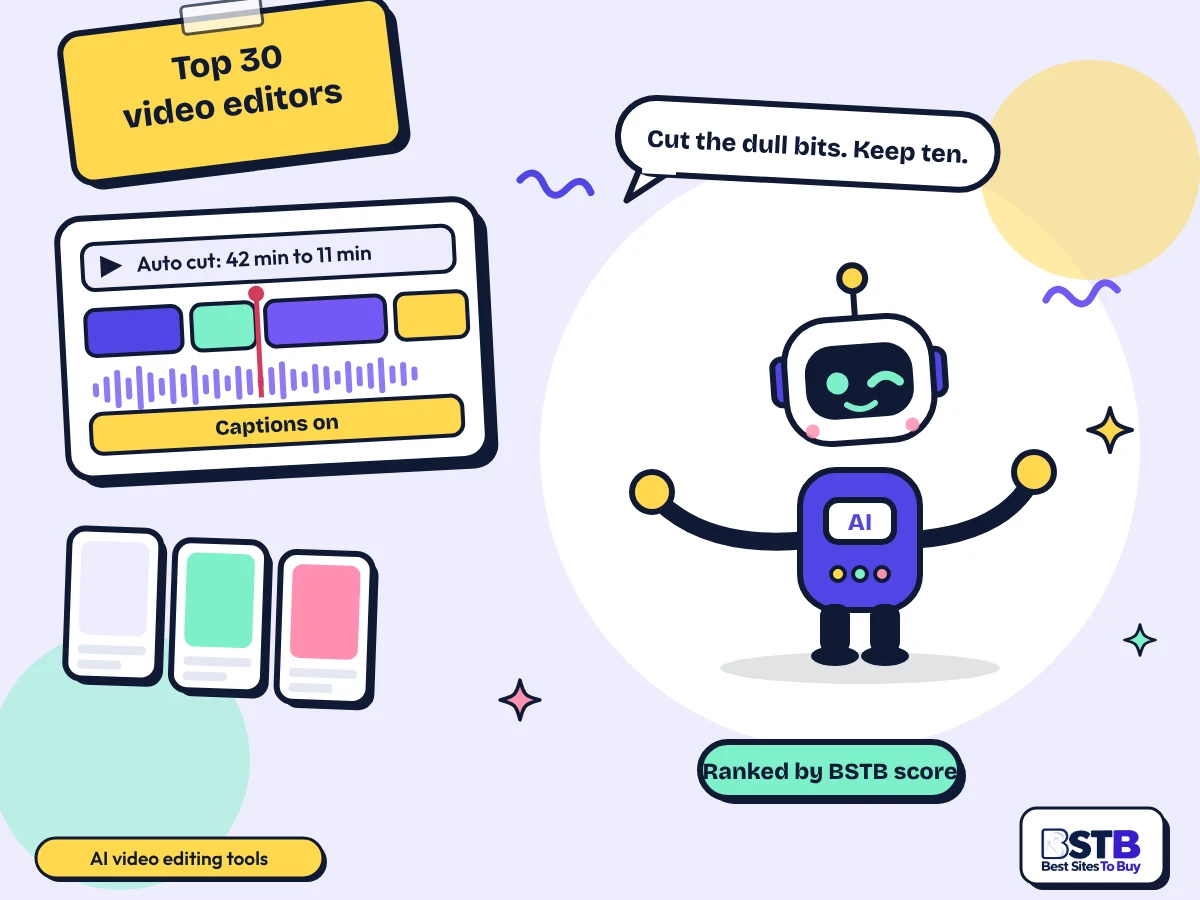
Every AI video editor on this page has its own BSTB page with a pricing model, plan prices, the editing jobs it handles and a score from the same nine criteria.
DaVinci Resolve scores highest at 4.4/5, with Premiere Pro, Descript and Riverside close behind at 4.2/5; filter by price or by the editing job you need done.
Showing 30 of 30. Picked from the 61 tools listed in the BSTB Video editing category and ranked by overall score.
Full post-production suite covering editing, colour, effects and audio, with a genuinely free edition and AI tools in Studio.

Industry-standard editor with text-based editing, Generative Extend, Enhance Speech and caption translation built into the timeline.

Edit video by editing the transcript: delete a sentence and the footage goes with it, with filler removal and Studio Sound.

Records each guest locally in high quality, then edits by transcript, strips filler words and clips the highlights into shorts.

The finishing pass rather than the edit: denoise, sharpen, upscale to 4K, stabilize and interpolate frames before delivery.

Screen and camera recorder that shares by link, with transcript editing plus silence and filler removal on AI plans.

Generates and edits footage from text prompts, with shot extension, 4K upscaling and ProRes output for real post pipelines.

Transcription and translation platform that produces captions, subtitles and speaker-labelled transcripts, with a Premiere integration.

Chat-driven editor that assembles new videos from footage you already host, adding captions, motion graphics and aspect ratios.

Strips bad takes, silences, filler words and background noise from talking-head recordings, then exports to your editor.

Desktop and mobile editor with a real timeline plus auto captions, background removal, auto reframe and agentic editing.

Turns long videos and podcasts into captioned vertical clips, removes silence and filler, reframes and schedules the posts.

Browser editor with auto subtitles, translation, noise removal, clip generation and aspect-ratio presets in one place.

AI tools inside Vimeo's hosting platform: scripts, teleprompter, transcript-based trimming of filler and pauses, captions and dubbing.

Beginner-friendly editor with AI subtitles, text-to-video, transitions, colour grading and audio denoise on a simple timeline.

Credit-based background removal for video without a green screen, plus photo cleanup, aimed at online sellers.

Prompt-driven editor whose agents assemble a first draft with stock media and captions, which you then refine on a timeline.

Turns one idea into a finished faceless video with script, narration, stock footage and captions, then lets you adjust the scenes.

Builds narrated, captioned videos from scripts, slides or prompts using several models, with an editor for captions and framing.

Lightricks' mobile-first editor with layers, AI subtitles, object and background removal, and aspect-ratio extension.

Screen recording plus AI editing: subtitles, pause trimming, reframing and a Long to Short clip maker in one account.

Template-driven maker that assembles photos, clips and text into marketing videos with transitions, licensed music and publishing.

Mobile template editor for short social video that trims pauses and filler, adds translated captions, animated text and music.

Converts blog posts and text into branded short videos with AI-picked footage, SRT captions and several aspect ratios.

Repurposes long YouTube videos into short vertical clips, thumbnails and posts, then schedules them across social networks.

Generates short vertical product videos and avatar ads, with background removal, captions, colour correction and noise reduction.

Finds the highlight moments in a long recording and turns them into branded captioned vertical clips, with a podcast clip maker.

Cuts long videos into captioned vertical clips and reframes them for short-form platforms, with no timeline to learn.

Turns long videos, podcasts and webinars into vertical clips with automatic highlight picking, speaker reframing and scheduling.

Records the screen and generates transcripts, AI subtitles, translations, dubbing and summaries, with basic trimming and merging.
AI video editors automate the parts of editing that follow rules: transcribing, cutting dead air, captioning, finding highlights, reframing and tidying audio. The judgement calls stay with you.
Almost all of them work from the transcript. Once the tool knows what was said and when, deleting a sentence in the text can delete the footage with it, which is how Descript and Riverside work. The same transcript drives captions, filler-word removal and the highlight picking that tools like Klap and quso.ai use to cut shorts.
The category splits into five groups: full timeline editors with AI features such as DaVinci Resolve and Adobe Premiere Pro, transcript-based cleanup tools, clip generators that turn one long video into many short ones, prompt-driven assemblers such as invideo AI, and captioning specialists. Most people end up using two of them.
Four models do most of the work: speech to text for the transcript, silence and filler detection for the cut, scene and face detection for reframing, and a highlight model that scores which moments are worth clipping.
Speech to text produces a time-coded transcript. Everything else, captions included, is built on it, so transcript accuracy sets the ceiling for the whole edit.
The tool marks dead air, breaths, ums and repeated takes, then removes them. This alone cuts 10 to 30 percent from most talking-head recordings.
Used for auto reframing to vertical, keeping the speaker centred, removing backgrounds and tracking an object through a shot.
A model ranks segments by how self-contained and attention-holding they are, which is what produces the shortlist of clips. It is the least reliable step and always needs review.
AI can handle the rough cut, captions, silence and filler removal, vertical reframing, background removal, B-roll suggestions and publishing to several platforms, leaving you the story and the taste.
Pick by the job: a full timeline editor, transcript-based cleanup, clipping long video into shorts, assembling a video from a prompt, or captions and subtitles.
AI video editing software with a real timeline, for work you will finish by hand.
AI tools for removing silence, filler words and backgrounds, and editing by transcript.
AI tools for turning long videos into shorts for TikTok, Reels and YouTube Shorts.
AI tools that edit from a text prompt and assemble footage automatically.
Editing tools work on footage you already shot. Generation tools create footage that never existed. Most products now do some of both, and the distinction decides which one you actually need.
| AI editing | AI assembly | AI generation | |
|---|---|---|---|
| Input | Your own footage | Your footage plus stock and a script | A text prompt |
| What it produces | A cut of what you filmed | A draft video built from existing assets | New clips that were never filmed |
| Use it for | Podcasts, interviews, courses, client work | Marketing videos, explainers, faceless channels | B-roll, concepts, effects shots |
| Main risk | A cut that loses the thread of the argument | Generic stock and a flat voiceover | Footage that does not match anything else you shot |
| Tools on BSTB | Descript, Riverside, Gling, Premiere Pro, DaVinci Resolve | invideo AI, Lumen5, VideoGen, Animoto, Wistia Remix | Runway, and the Video generators category |
A good AI video editor transcribes accurately, lets you undo any automated cut, exports to a real editor, handles your footage length and resolution, and prices predictably rather than per minute.
These overlap with BSTB's nine scoring criteria, which also weigh speed, support, customisation and integrations.
Five steps: upload the full recording, let the tool shortlist the moments, check each clip has a beginning and an end, fix the captions and reframing, then export vertical and schedule.
Clip tools work better on the full file than on a pre-trimmed section. Klap, quso.ai, HiClip and Flowjin all take a long upload or a YouTube link.
The highlight model is the weakest link. Expect to reject half the suggestions and to find one good moment it missed.
A clip that starts mid-sentence or answers a question the viewer never heard will not hold. Trim the start and end by hand.
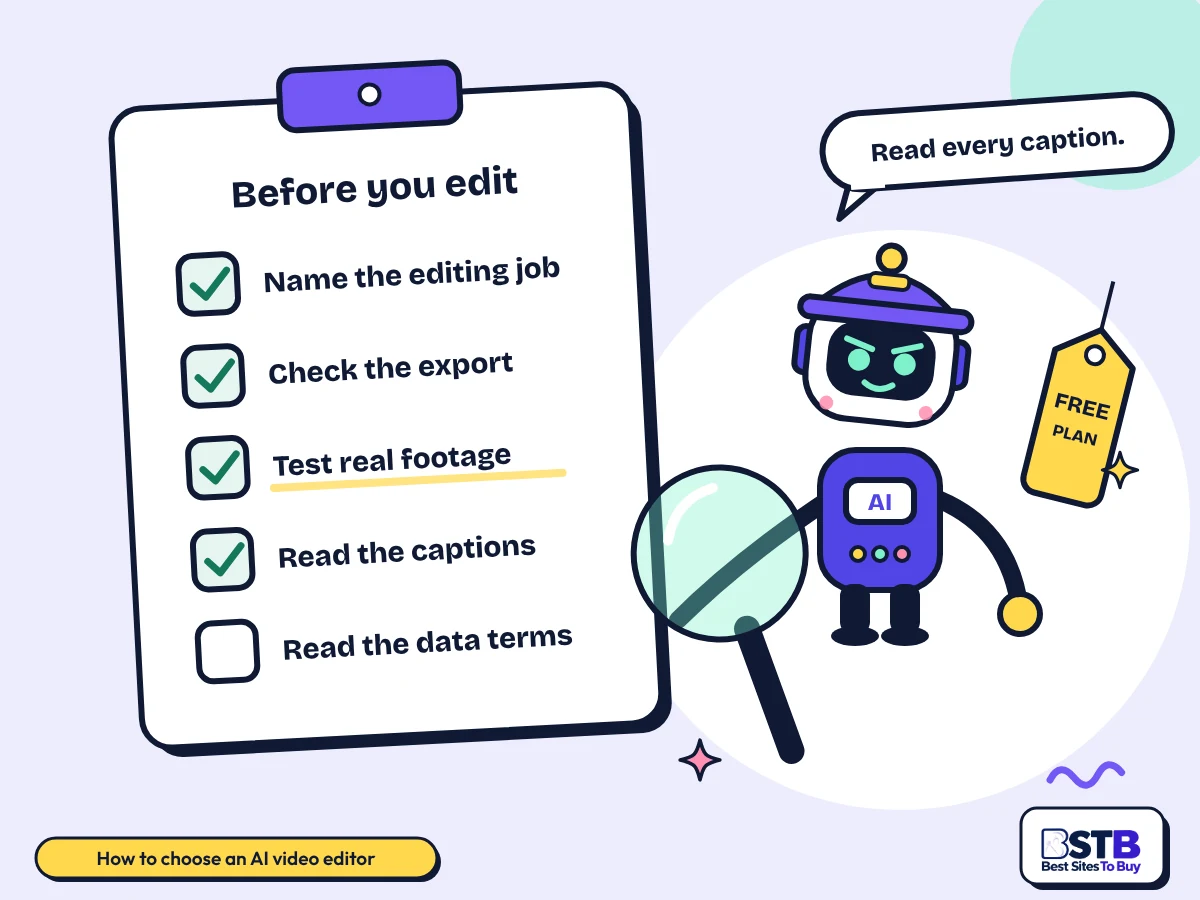
Read every caption: names, jargon and numbers are where auto-captions fail. Check the speaker stays in frame after the vertical reframe.
Export 9:16 for TikTok, Reels and Shorts. Taja AI and quso.ai also schedule the posts from the same place.
Choose by naming the job first, then checking the export path, testing it on your own worst footage, reading the caption accuracy on your accent, and checking how pricing scales with length.
Cleanup, clipping, assembly, captions and full editing are five products. Use the Editing job filter above the grid rather than buying the longest feature list.
If the project finishes in Premiere or Resolve, you need XML or EDL export, not just MP4.
Crosstalk, a strong accent, a noisy room. Marketing demos are always recorded in perfect conditions.
Caption accuracy is the single clearest difference between these tools, and it is free to test.
Per-minute and credit pricing punishes long recordings. Work out the cost of one real month before subscribing.
Most AI video editors are freemium: 24 of the 30 here are free to start and 6 are paid or trial only, with paid plans from about $9 to $60 a month and DaVinci Resolve free outright.
| Pricing model | Tools in the top 30 | What you get | Tools |
|---|---|---|---|
| Free | 0 of 30 | Everything free, no paid tier | |
| Freemium | 24 of 30 | Free plan with limits, paid upgrade | DaVinci Resolve, Descript, Riverside, Topaz Labs, Loom, Runway, Wistia Remix, Gling, PowerDirector, quso.ai, VEED.IO, Vimeo AI, Wondershare Filmora, Cutout Pro, VideoGen, Videoleap, Vmaker AI, Animoto, InStories, Lumen5, Vmake, Flowjin, HiClip, RecCloud |
| Paid | 6 of 30 | Paid only, sometimes with a trial | Adobe Premiere Pro, Sonix, invideo AI, Vid.AI, Taja AI, Klap |
Prices come from each tool's BSTB page. Free tiers usually watermark the export, cap resolution at 720p or 1080p, or limit minutes per month. Watch for credit-based pricing on AI features inside otherwise flat-priced editors, which is how a cheap plan becomes an expensive one. Confirm on the vendor's site before you buy.
AI cuts to rules, not meaning: it removes pauses that were doing work, picks clips that lack context, mis-captions names and jargon, and cannot tell a good take from a bad one.
BSTB scores every one of these AI video editors on the same nine criteria, and the overall score on each card is the plain average of the nine.
Scores are based on each tool's official pages, documentation, pricing and public user feedback. Read the full method on how BSTB tests and scores tools.
Video editors overlap with these categories. Browse them when you need a narrower tool, or go back to the full AI tools directory.
Quick answers on editing by text prompt, cutting long videos into shorts, automatic captions, removing silence and backgrounds, YouTube and TikTok workflows, podcast editing, B-roll and free editors without watermarks.
Upload the recording to a transcript-based editor: Descript, Riverside, Gling and Vimeo AI transcribe it, cut the silences, bad takes and filler words, and hand you a rough cut to refine.
Automatic editing works best on talking-head material, where the transcript maps cleanly onto the footage. Multi-camera, music-led and heavily visual edits still need a timeline and a person.
Always review the automated cut. These tools remove pauses that were doing a job.
Yes. Prompt-driven editors such as invideo AI, Wistia Remix, Runway and VideoGen take an instruction in plain English and assemble or re-cut a video, which you then adjust on a timeline.
Two things are happening under the same label. Some tools build a new video from stock and a script, others re-cut footage you already own. Check which one a tool does before you expect it to touch your rushes.
Prompt editing is fastest for a first draft and slowest for a precise change.
Use a clipping tool: quso.ai, Klap, HiClip, Flowjin, Taja AI and Vmaker AI take a long upload or a YouTube link, score the moments, cut vertical clips and caption them automatically.
The shortlist is a starting point. The model picks energy, not completeness, so check each clip opens and closes cleanly before you post it. Expect to keep about half.
Feed the full recording, not a trimmed section. The model needs the context to score moments.
Yes, and it is the most reliable AI feature in video editing. VEED.IO, Sonix, Descript, RecCloud and almost every tool here generate captions from the transcript, burned in or as an SRT file.
Accuracy depends on audio quality, accent and vocabulary rather than on the brand. Names, acronyms and technical terms are where every tool fails, so read the captions before you publish.
Always export an SRT as well. Platforms index subtitle files, not pixels.
Run it through a silence and filler remover: Descript, Gling, Riverside, Loom and Vimeo AI detect dead air, breaths and ums, then cut them with the footage attached.
This usually takes 10 to 30 percent off a talking-head recording. Set the aggressiveness low to start: a tight setting makes speech sound clipped and removes the pauses that carry emphasis.
Listen back at full speed. Over-trimmed speech sounds breathless even when it reads fine.
Yes, without a green screen. Cutout Pro, PowerDirector, Videoleap, VEED.IO and Vmake separate the subject from the background frame by frame and let you replace or blur it.
Quality depends on the shot. Even lighting, a clear gap between subject and background and no fast movement give a clean edge. Hair, glasses and motion blur are where cutouts fray.
Check the edges at full resolution. They look fine in a preview and ragged on export.
Use a two-tool workflow: a cleanup tool such as Gling or Descript for the main edit, then a clipping tool such as Taja AI or quso.ai to cut shorts from the finished video.
For a typical talking-head channel, AI handles the dead air, the captions and the shorts. The structure, the hook and the thumbnail are still the parts that decide whether the video performs.
Export the clean cut first, then clip from it. Clipping from an unedited file wastes the cleanup.
It can shortlist them, not choose them. Highlight models in Klap, quso.ai, Flowjin, HiClip and Riverside score segments by energy and self-containment, and get it right roughly half the time.
The model cannot tell which moment matters to your audience. Treat the shortlist as a fast first pass over a two-hour recording, then apply your own judgement to what it surfaced.
Scan the transcript yourself as well. The best moment is often one the model skipped.
Clip and reframe in one pass: quso.ai, Klap, HiClip, InStories and Vmaker AI cut vertical 9:16 clips with captions, keep the speaker in frame and export at the right size for each platform.
Vertical reframing is the step that matters. A static centre crop loses the speaker whenever they move, so check the tool tracks faces rather than just cropping the middle of the frame.
Burn in the captions for social. Most viewers watch with the sound off.
Yes. Wondershare Filmora, PowerDirector, Videoleap and Animoto apply transitions, effects and beat-matched cuts automatically, and DaVinci Resolve and Premiere Pro add AI colour and audio tools.
Automatic transitions are best kept quiet. The default settings in consumer editors tend towards flashy, and a cut is usually the right transition. Use the AI for colour matching and audio cleanup instead.
Fewer transitions almost always looks more professional than more.
Record locally and edit by transcript: Riverside records each guest at full quality, then Descript, Gling or Vimeo AI cut the filler, and Flowjin or Klap clip the highlights for social.
Video podcasts are the ideal case for AI editing. The content is speech, the camera rarely moves, and the transcript maps exactly onto the footage, so the automated cut needs little repair.
Record each participant locally. No AI tool can repair a dropped connection in the recording.
Partly. invideo AI, Lumen5, VideoGen and Animoto match stock footage to your script automatically, but no tool reliably picks B-roll from your own library yet.
Automatic stock B-roll is fine for explainers and faceless channels and obvious in anything personal. It matches on keywords, so a clip about running shoes gets generic running footage rather than your product.
Swap the two most generic stock clips for your own footage. It changes how the whole video reads.
Use a clip-and-schedule tool: quso.ai, Taja AI, Vmaker AI and Klap cut the clips, reframe them for each aspect ratio, caption them and post to several platforms from one place.
Repurposing is three jobs: finding the moment, resizing it correctly and writing the post. Tools now cover all three, but the caption text they write for each platform usually needs a rewrite.
One cut per platform beats one cut everywhere. The first three seconds should differ by audience.
Yes. DaVinci Resolve is free with no watermark and no feature trap, and Descript, VEED.IO, Riverside, Loom and quso.ai all have free tiers, though most of those watermark the export.
24 of the 30 tools here are free to start. In this category the usual free-tier limit is a watermark, a 720p or 1080p cap, or a monthly minute allowance on the AI features specifically.
Check whether the free tier watermarks the export or just caps the minutes. They are very different limits.
Yes. Transcript editors and clip tools need no timeline skills at all: if you can edit a document or upload a file, you can produce a captioned, trimmed, vertical video.
The skill that still matters is judgement about structure and pacing, which no tool supplies. Start with a transcript editor rather than a timeline editor, and move to a timeline only when the automated cut stops being enough.
Watch your own first edit back twice. It teaches more than any feature list.
Auto-captions are typically 90 to 98 percent accurate on clean audio in a common accent, and far worse on names, acronyms, technical terms, crosstalk and strong regional accents.
The errors cluster exactly where meaning sits. A caption that mangles a product name or a number is worse than no caption, so read every line before publishing and keep a glossary of your recurring terms.
Record with a proper microphone. It improves captions more than switching tool ever will.
No, it sits in front of them. AI tools produce the rough cut, the captions and the clips, and a timeline editor still does colour, sound design, multi-camera, motion graphics and the final conform.
The common workflow is to clean up in a transcript editor, export XML or EDL, and finish in Premiere Pro or Resolve. For social clips and internal video, the AI tool is often the whole workflow.
If a tool cannot export to your finishing editor, it is a dead end for client work.
BSTB scores every AI video editor on nine criteria: accuracy and reliability, ease of use, functionality, performance, customisation, data privacy, support, cost-efficiency and integrations.
The score on each card is the plain average of those nine. Scores come from each tool's official documentation, pricing pages and public user feedback, and every tool keeps its own page with the full breakdown.
BSTB does not publish a video editor, so nothing here is ranked first for being ours.
BSTB rechecks this list whenever a tool changes its pricing or feature set, and reviews the whole category on a rolling basis as new AI video editors are listed.
This category changes faster than most: tools are renamed, absorbed or shut down regularly, and credit pricing moves often. Each tool's own BSTB page carries the last checked figures.
Always confirm the current price on the vendor's own site before paying.
Send us your tool's name, website and pricing. The BSTB team reviews every submission before it joins the AI tools directory.